ThingsBoard Integration
ThingsBoard is an open-source IoT platform for data collection, processing, visualization, and device management. This guide shows how to integrate Haltian IoT data with ThingsBoard.
Prerequisites
- Haltian IoT MQTT credentials (API key ID and token)
- ThingsBoard instance (Cloud or self-hosted)
- Device ID mapping (UUID to physical device)
Contact support@haltian.com or your Haltian account manager for MQTT credentials.
Architecture
%%{init: {'theme': 'base', 'themeVariables': {'primaryColor': '#F6FAFA', 'primaryTextColor': '#143633', 'primaryBorderColor': '#143633', 'lineColor': '#143633', 'secondaryColor': '#C7FDE6', 'tertiaryColor': '#73F9C1', 'clusterBkg': '#ffffff', 'clusterBorder': '#143633', 'edgeLabelBackground': '#ffffff'}}}%%
graph LR
    A[Haltian Sensors] --> B[Haltian IoT Platform]
    B --> C[MQTT Broker]
    C --> D[ThingsBoard<br/>MQTT Integration]
    D --> E[Uplink Converter]
    E --> F[ThingsBoard<br/>Device Entities]
    F --> G[Dashboards]

    style B fill:#143633,stroke:#143633,color:#fff
    style D fill:#73f9c1,stroke:#143633,color:#143633
Step 1: Create Uplink Converter
The uplink converter transforms Haltian IoT MQTT messages into ThingsBoard format.
- Navigate to ThingsBoard → Data Converters
- Click Add Data Converter → Create new converter
- Set type to Uplink
- Paste the following decoder code:
// Haltian IoT MQTT Uplink Converter for ThingsBoard
// Decodes Haltian IoT JSON messages and maps to ThingsBoard telemetry

// Decode payload to JSON
var payloadStr = decodeToString(payload);
var data = decodeToJson(payload);

// Extract device info from MQTT topic
var topic = metadata["topic"];
var topics = topic.split("/");
var deviceName = topics[topics.length - 1];       // Device UUID
var measurementName = topics[topics.length - 2]; // Measurement type

var deviceType = 'Haltian IoT device';
var manufacturer = 'Haltian IoT';

// Build telemetry map
var map = {};

foreach(element : data.entrySet()) {
    var k = element.getKey();
    var v = element.getValue();
    var p = measurementName + "." + k;
    map.put(p, v);

    // Special handling for position data
    if (measurementName == "position" && k == "value") {
        if (v.position_global && v.position_global.coordinates) {
            var lon = v.position_global.coordinates[0];
            var lat = v.position_global.coordinates[1];
            map.put("latitude", lat);
            map.put("longitude", lon);
        }
        if (v.position_local) {
            map.put("position_x", v.position_local.x);
            map.put("position_y", v.position_local.y);
            map.put("position_z", v.position_local.z);
        }
        if (v.accuracy) {
            map.put("position_accuracy", v.accuracy);
        }
    }

    // Flatten simple measurements
    if (measurementName != "position" && k == "value") {
        map.put(measurementName, v);
    }
}

// Return result for ThingsBoard
var result = {
    deviceName: deviceName,
    deviceType: deviceType,
    telemetry: map
};

return result;
- Click Add to save the converter
Step 2: Create MQTT Integration
- Navigate to ThingsBoard → Integrations
- Click Add Integration
- Configure the integration:
| Field | Value |
|---|---|
| Name | Haltian IoT MQTT |
| Type | MQTT |
| Uplink data converter | (select the converter from Step 1) |
| Host | mqtt.eu.haltian.io |
| Port | 8883 |
| Connection timeout | 10 |
| Client ID | (leave empty or use unique ID) |
| Enable SSL | ✅ Checked |
| Username | Your API Key ID |
| Password | Your API Key Token |
- Set the topic filter:
haltian-iot/events/{integration-id}/{api-key-id}/#
Replace {integration-id} and {api-key-id} with your actual values.
- Click Add to create the integration
Step 3: Verify Data Flow
- Navigate to Entities → Devices
- Verify new devices appear as MQTT data is received
- Devices are named by their Haltian IoT UUID
Do not change device entity names - they are used as identifiers for incoming data. Use the device label field for descriptive names.
Check Device Telemetry
- Click on a device
- Navigate to Latest telemetry tab
- Verify measurements are being received:
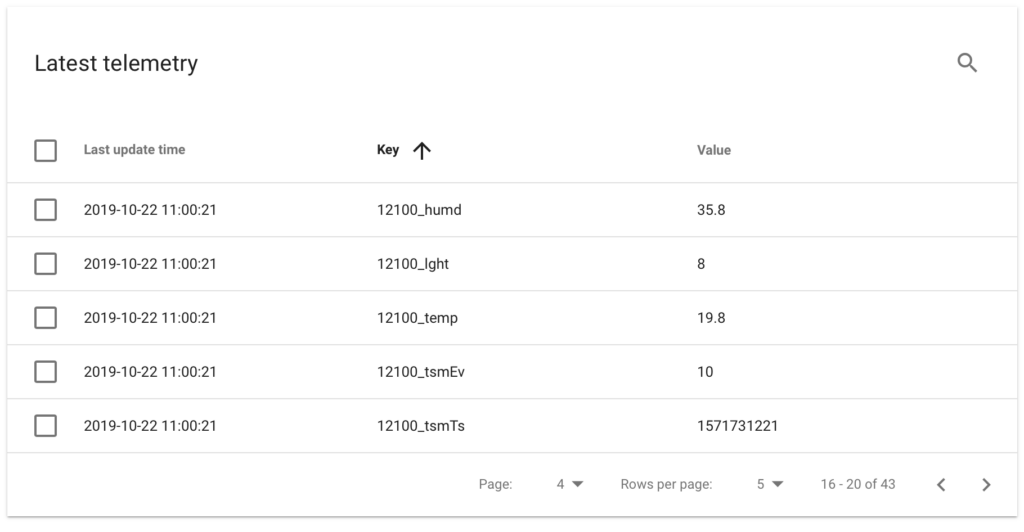
| Key | Example Value |
|---|---|
ambient_temperature.value | 23.5 |
ambient_temperature.measured_at | 2025-01-28T10:30:00.000Z |
humidity.value | 45.2 |
battery_level.value | 85 |
Step 4: Map Device Identifiers
Haltian IoT uses UUIDs for device identification. To map to physical devices:
Option A: Use ThingsBoard Labels
Add the TUID (from device QR code) to the device label:
- Edit device in ThingsBoard
- Set Label to the TUID (e.g.,
TSPR04EZU31901021)
Option B: Query Haltian IoT API
Use the Service API to get device mappings:
query GetAllDevices {
  devices(first: 100) {
    edges {
      node {
        id      # UUID used in MQTT
        tuid    # Physical device identifier
        name
      }
    }
  }
}
Step 5: Create Dashboards
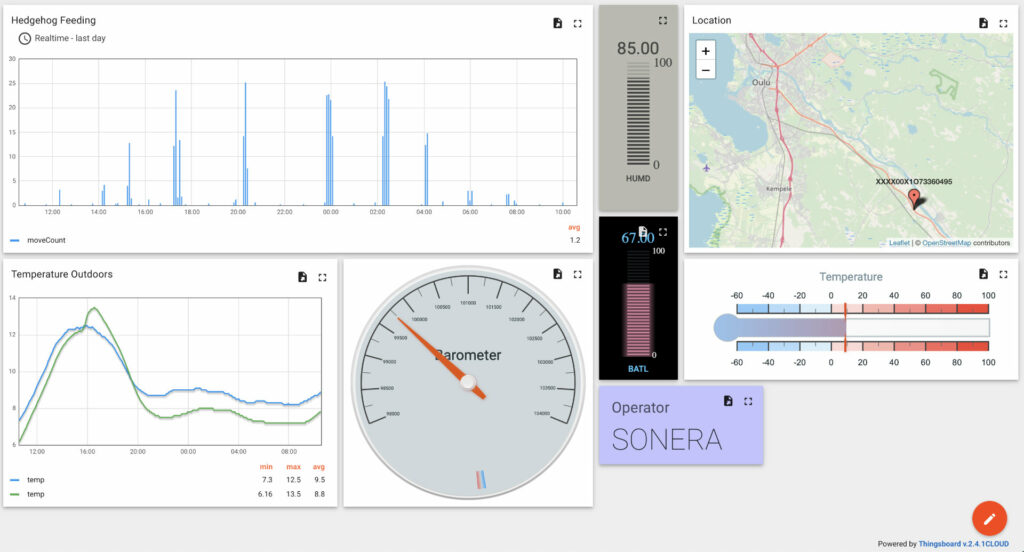
Build dashboards using Haltian IoT device data:
- Navigate to Dashboards
- Create new dashboard
- Add widgets with device data sources
Widget Configuration
| Widget Type | Data Key | Description |
|---|---|---|
| Gauge | ambient_temperature | Temperature display |
| Line Chart | ambient_temperature.value | Temperature over time |
| Map | latitude, longitude | Asset location |
| Card | battery_level.value | Battery status |
| Boolean | presence.value | Presence indicator |
Example Dashboard Layout
Downlink Messages
Haltian IoT MQTT is only for uplink (sensor → cloud). For device commands use Haltian IoT Service API (GraphQL) for device configuration
Troubleshooting
No Devices Appearing
- Check integration status in ThingsBoard
- Verify MQTT credentials are correct
- Ensure topic filter matches your integration/API key IDs
- Check ThingsBoard logs for connection errors
Data Not Updating
- Verify sensor is sending data (check Haltian IoT Studio)
- Check uplink converter for errors
- Ensure device hasn’t been renamed in ThingsBoard
Position Data Missing
The basic converter requires enhancement for position data. Use the extended converter above or add specific position handling.
Next Steps
- Stream API Reference - MQTT topic structure
- Service API - Query device metadata
- Measurement Types - All available measurements