Microsoft Places Integration
Experimental - This integration is in active development. Contact Haltian for implementation support.
Introduction
Microsoft Places is an AI-powered workplace app for flexible work. It helps organizations:
- Reimagine flexible work with AI
- Modernize how employees connect for in-office days
- Optimize space management with occupancy and utilization data
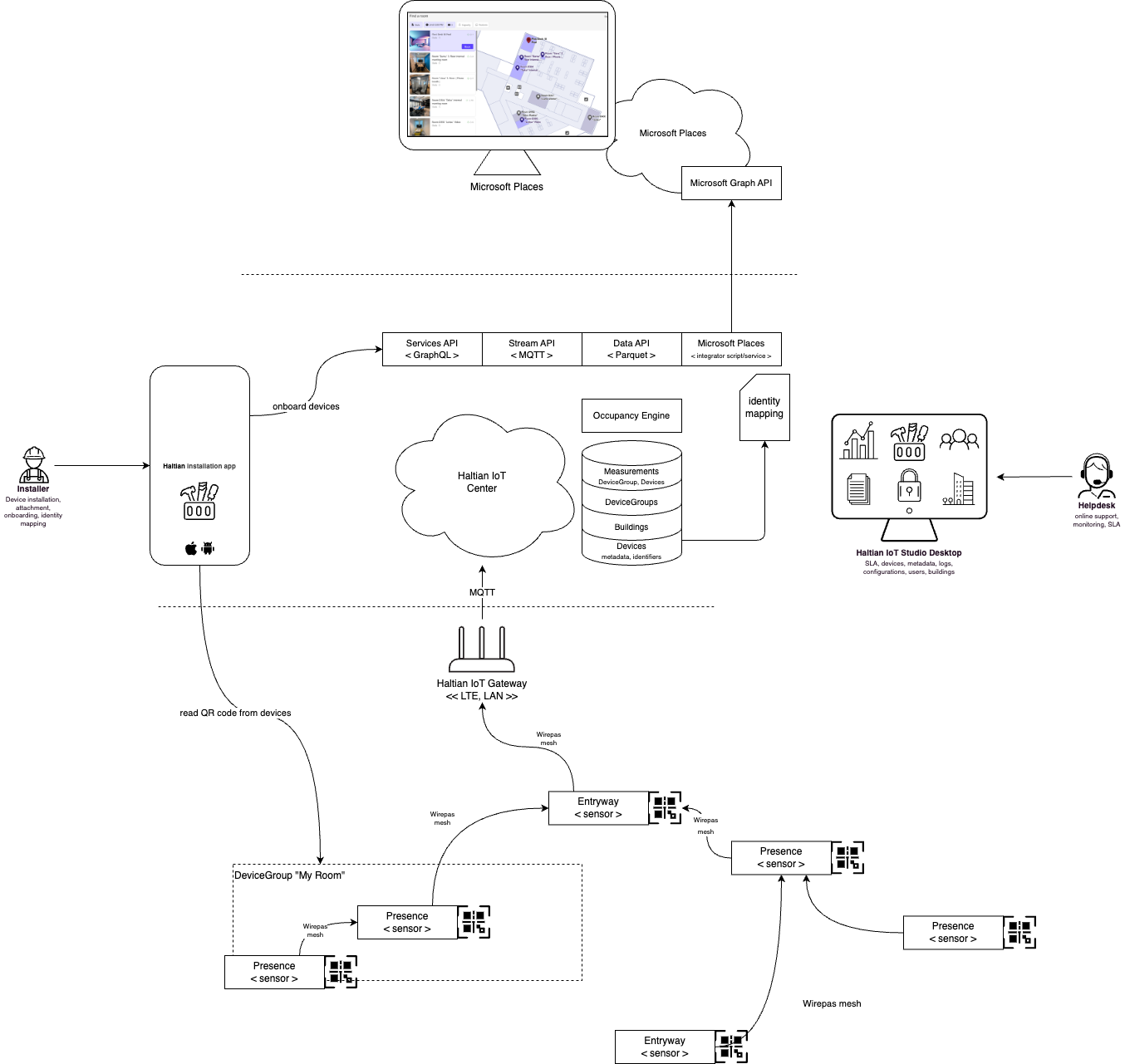
Haltian IoT sensors provide real-time occupancy data to Microsoft Places, enabling accurate room availability, desk booking, and space analytics.
For the latest Microsoft Places information, see the Microsoft Places documentation.
Overview
This integration involves:
| Task | Responsible Party |
|---|---|
| Configure buildings and floors | Customer |
| Create floorplans (IMDF maps) | Haltian + Customer |
| Turn on Places Finder | Customer |
| Configure desk booking | Customer |
| Map sensors to assets | Haltian |
| Provide real-time occupancy data | Haltian |
Prerequisites
License Requirements
Microsoft Places features require specific licenses:
| License | Features |
|---|---|
| Microsoft 365 subscription | Core features: work plans, calendar cards, RSVP |
| Teams Premium | Enhanced features: Places finder, space analytics |
| Microsoft 365 Copilot | AI features: managed booking, recommended days |
See Microsoft’s license requirements for current details.
Tools Required
- PowerShell 7.4.0+ - Download
- Microsoft Places PowerShell module:
Install-Module -Name MicrosoftPlaces -Force
Permissions
You need two Exchange Online management roles:
- TenantPlacesManagement - Manage Places
- MailRecipient - Manage users and mailboxes
If you have the Exchange Administrator role, you likely have these permissions. Otherwise:
New-ManagementRoleAssignment -Role TenantPlacesManagement -User <UPN>
You need an Exchange Online license to run Microsoft Places PowerShell cmdlets.
Step 1: Configure Buildings and Floors (Customer)
1.1 Create Building Hierarchy
- Launch PowerShell 7 as Administrator
- Connect to Microsoft Places:
Connect-MicrosoftPlaces
- Initialize the hierarchy:
Initialize-Places
- Select Option 1 to create a CSV file from existing room data
The generated CSV contains your organization’s rooms and workspaces with inferred building/floor names.
1.2 Review and Edit CSV
- Open the CSV file
- Correct building and floor names in
InferredBuildingNameandInferredFloorNamecolumns - Remove all columns except:
InferredBuildingNameInferredFloorNameInferredSectionNamePrimarySmtpAddress
- Save and close the file
1.3 Upload Hierarchy
Initialize-Places
Select Option 2 to import your edited CSV file.
1.4 Verify
Check that buildings appear in Microsoft Teams or Outlook calendar workplace presence settings.
1.5 Add Metadata (Optional)
Add capacity, A/V equipment, room pictures using Set-PlaceV3:
Set-PlaceV3 -Identity "meeting-room@contoso.com" -Capacity 10 -AudioDevices "Teams Room"
See Set-PlaceV3 documentation for full options.
Step 2: Configure Floorplans (Customer + Haltian)
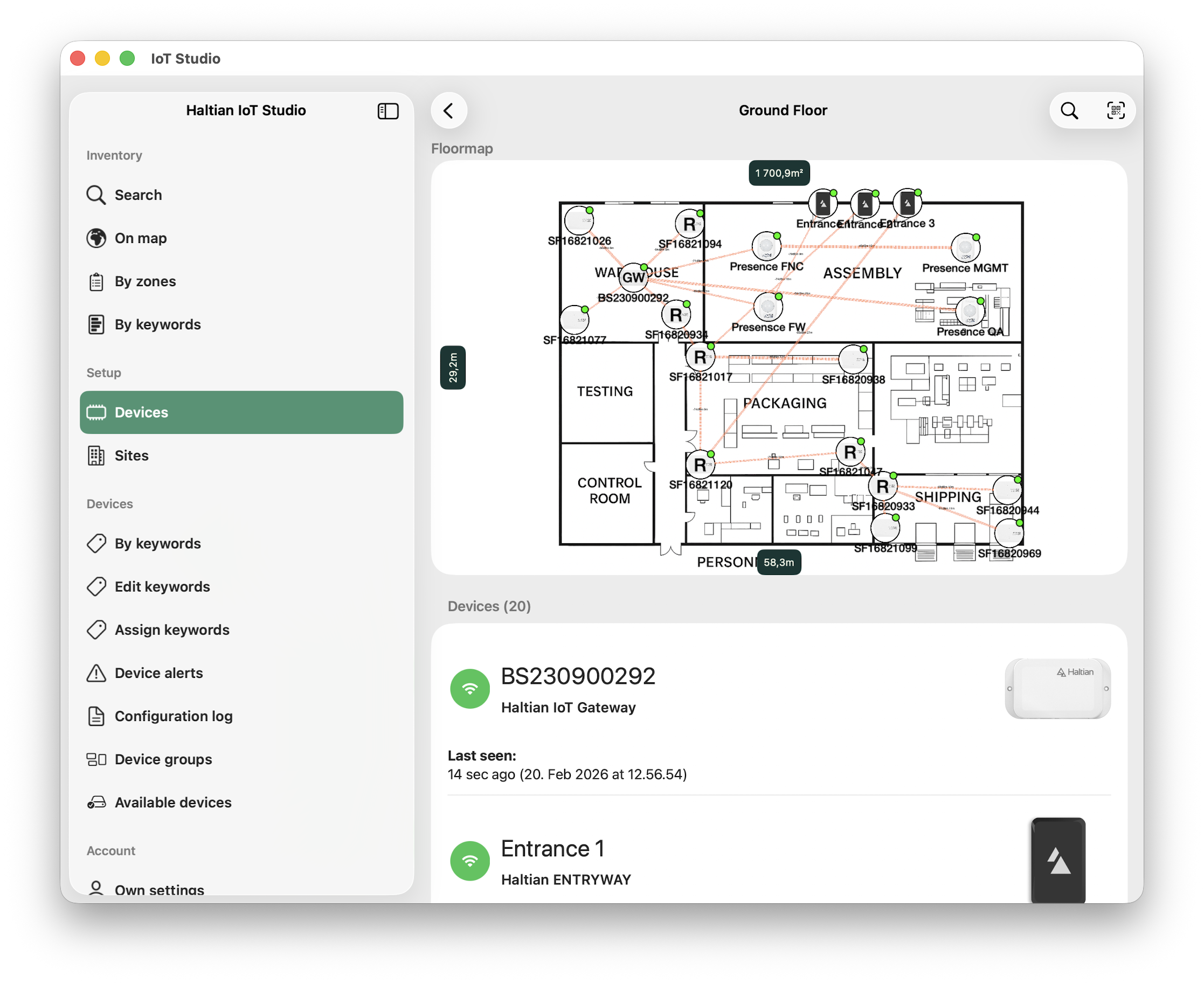
Floor plans enable users to see building layouts and find rooms/desks visually.
2.1 Export Spatial Information (Customer)
- Find the building PlaceId:
Get-PlaceV3 -Type Building | ? {$_.DisplayName -eq 'Your Building Name'} | ft DisplayName,PlaceId
- Export building data to CSV:
Get-PlaceV3 -AncestorId <BuildingPlaceId> | Export-Csv "YourBuilding.csv" -NoTypeInformation
- Share this CSV file with Haltian
2.2 Prepare IMDF Files (Haltian)
Haltian creates IMDF (Indoor Mapping Data Format) files:
- One zipped folder per building containing:
building.geojsonfootprint.geojsonlevel.geojsonunit.geojson
Requirements:
- Maps must be georeferenced
- Each package contains only one building
- Floor ordinal values match Microsoft Places SortOrder
- Names use language code format:
{
"properties": {
"name": {
"en": "3rd Floor"
}
}
}
2.3 Generate Correlation File (Customer)
- First run - extract map features:
Import-MapCorrelations -MapFilePath "path\to\imdffile.zip"
This creates mapfeatures.csv.
- Second run - correlate with Places data:
Import-MapCorrelations -MapFilePath "path\to\imdffile.zip" -CorrelationsFilePath "path\to\mapfeatures.csv"
2.4 Correlate Spaces (Customer)
- Open the building CSV (from Step 2.1) and
mapfeatures.csvside by side - For each building, floor, and room: copy PlaceId, Name, and Type from building CSV to mapfeatures CSV
- Save the file
Building and all floor levels must be correlated. The import fails if these features aren’t correlated.
2.5 Update IMDF with Correlations (Customer)
Import-MapCorrelations -MapFilePath "path\to\imdffile.zip" -CorrelationsFilePath "path\to\mapfeatures.csv"
This creates imdf_correlated.zip.
2.6 Import Maps (Customer)
- Get the building PlaceId:
Get-PlaceV3 -Type Building | ? {$_.DisplayName -eq 'Your Building'} | ft DisplayName,PlaceId
- Import the correlated maps:
New-Map -BuildingId <BuildingPlaceId> -FilePath "path\to\imdf_correlated.zip"
Map updates may take up to 1 hour to appear in Microsoft Places.
Step 3: Enable Places Finder (Customer)
Places Finder replaces the Room Finder experience in Outlook and Teams.
Microsoft Places Finder requires a Teams Premium license.
Enable for Specific Group
Set-PlacesSettings -PlacesFinderEnabled 'Default:false,OID:<group-object-id>:true'
Enable for Everyone
Set-PlacesSettings -PlacesFinderEnabled 'Default:true'
Verify Settings
Get-PlacesSettings
Use a mail-enabled security group for proper functionality.
Step 4: Configure Desk Booking (Customer)
Enable desk booking for workspaces in Microsoft Places. See Microsoft’s desk booking documentation for details.
Step 5: Sensor Mapping (Haltian)
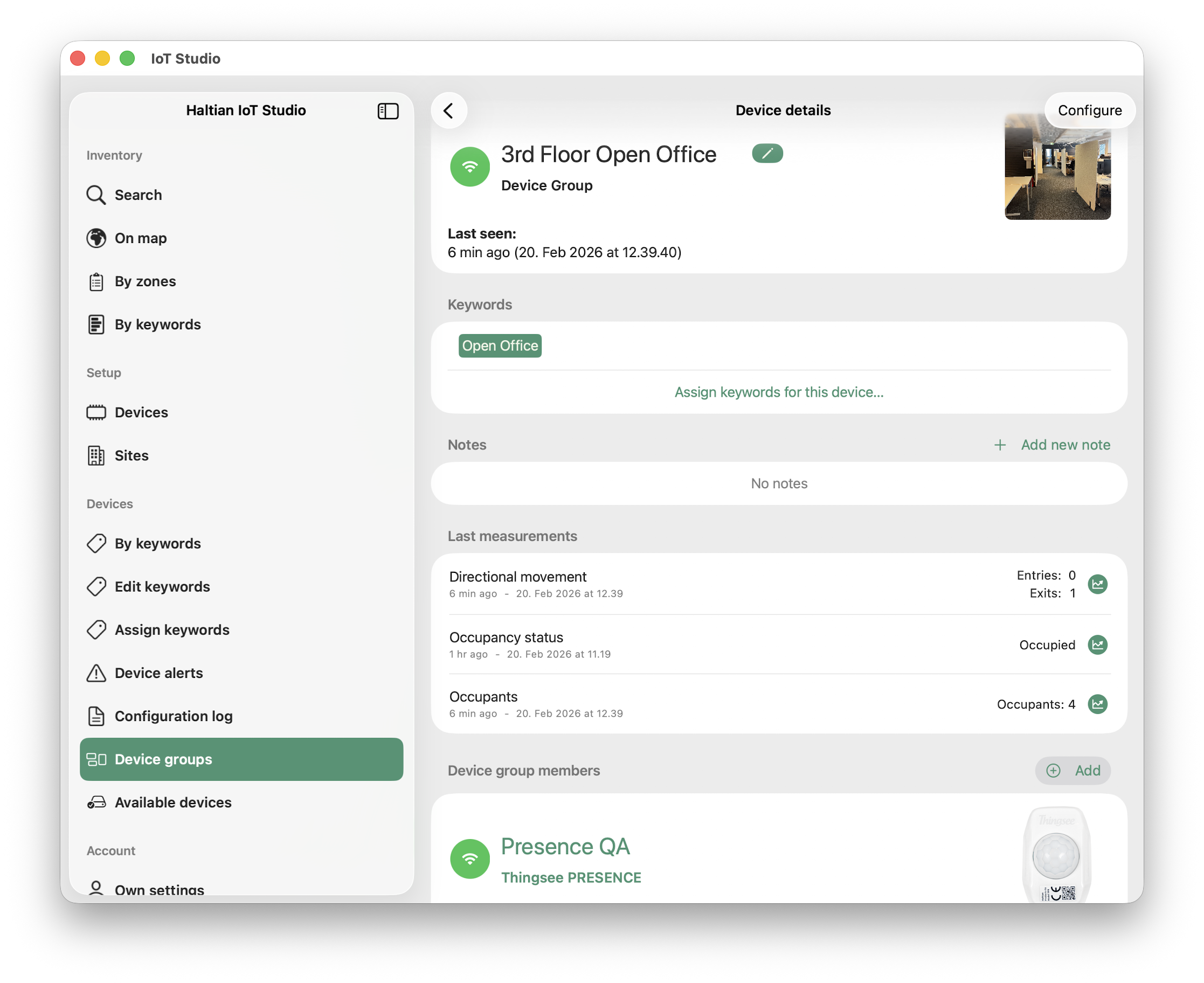
Haltian maps physical sensors to Microsoft Places assets:
- Room sensors - Mapped to meeting room resources
- Desk sensors - Mapped to bookable desk resources
- Zone sensors - Mapped to floor sections
This enables:
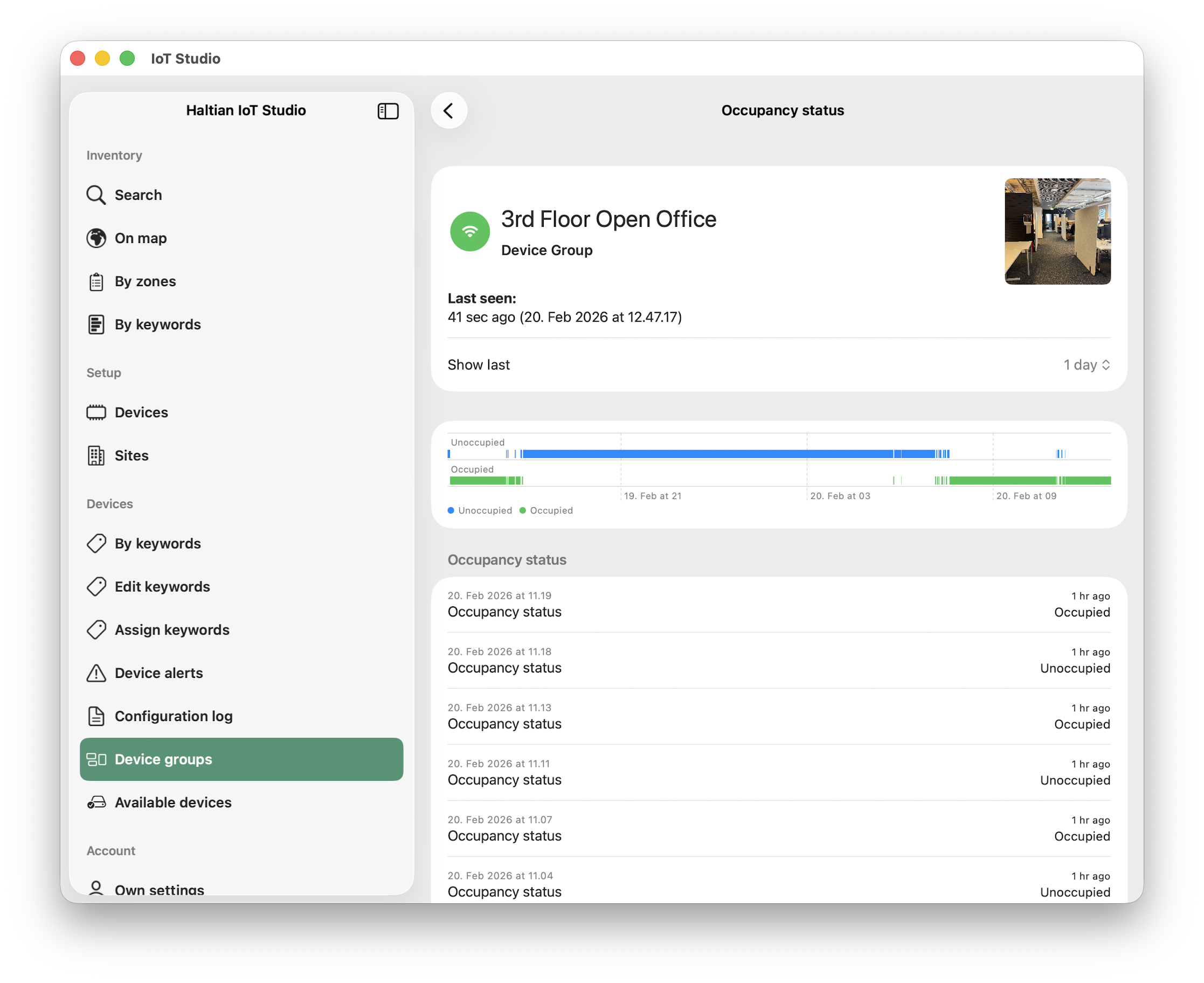
- Real-time room availability
- Desk occupancy status
- Space utilization analytics
Data Flow
%%{init: {'theme':'base', 'themeVariables': {'primaryColor':'#73f9c1','primaryTextColor':'#143633','primaryBorderColor':'#143633','lineColor':'#143633'}}}%%
sequenceDiagram
participant S as Haltian Sensors
participant H as Haltian IoT Platform
participant M as Microsoft Places
participant U as End Users
S->>H: Occupancy measurements
H->>M: Occupancy data (API)
M->>U: Room/desk availability
U->>M: Book room/desk
M->>U: ConfirmationTroubleshooting
Buildings Not Appearing
- Verify CSV was imported successfully with
Initialize-Places - Check building names match exactly
- Wait up to 1 hour for sync
Maps Not Displaying
- Verify IMDF files follow Apple IMDF specifications
- Check all correlations are complete in mapfeatures.csv
- Ensure floor ordinal values match SortOrder
Occupancy Data Not Updating
- Verify sensor-to-asset mapping with Haltian
- Check sensor connectivity in Haltian IoT Studio
- Confirm API integration is active
Support
- Microsoft Places: Microsoft documentation
- Haltian Integration: support@haltian.com