Troubleshooting
Troubleshooting Overview
This guide addresses common issues with Haltian ENTRYWAY sensors and provides step-by-step solutions.
Quick troubleshooting approach:
- Identify the problem (symptoms)
- Check common causes (this guide)
- Verify configuration (IoT Studio)
- Contact support if unresolved
If you can’t resolve the issue using this guide, contact Haltian support: support@haltian.com. Include sensor ID, problem description, and troubleshooting steps already attempted.
Counting Accuracy Issues
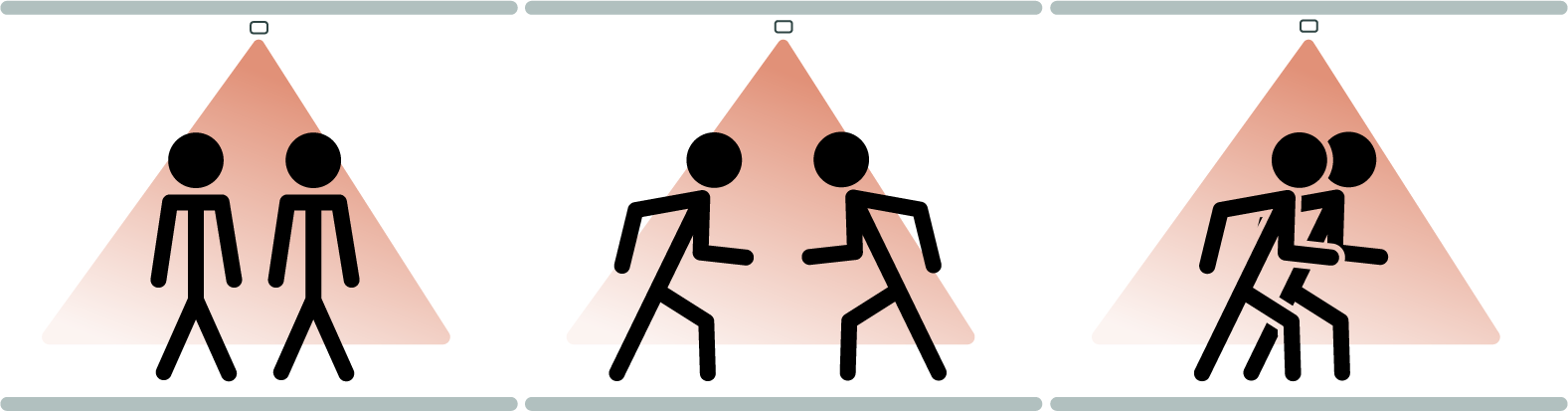
Counts Lower Than Expected (Missed Detections)
Symptoms:
- Fewer entries/exits reported than actual foot traffic
- People walking through but not counted
- Inconsistent detection
Common causes:
1. Incomplete Passage Through Detection Zone
Problem: People not walking through all three PIR beams completely
Examples:
- Person stops midway through doorway
- Person reverses direction before exiting detection zone
- Person lingers in doorway (talking, checking phone)
Solution:
- Observe traffic patterns during peak times
- Identify if people frequently stop or linger
- Option A: Educate users to walk through completely (for controlled environments like offices)
- Option B: Relocate sensor to location with complete passage patterns
- Option C: Accept limitation (some missed counts unavoidable in certain locations)
Expected outcome: Complete passage through all three beams ensures accurate count
2. Insufficient Temperature Difference
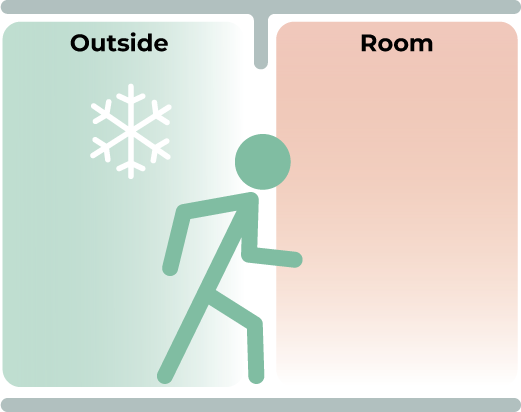
Problem: Ambient temperature too close to body temperature (thermal detection fails)
Examples:
- High room temperature (> 30°C): Less thermal contrast
- Person wearing thick winter clothing (just entered from cold outdoors)
- Person’s body temperature close to ambient (after exercise in warm room)
Solution:
- Check ambient temperature in installation area
- Optimal: 15-25°C ambient temperature
- If > 30°C, PIR detection unreliable:
- Option A: Improve ventilation/cooling (lower ambient temp)
- Option B: Consider alternative sensor technology (time-of-flight, video)
- For winter clothing issue:
- Wait for person to acclimate (body surface temperature normalizes)
- Or accept temporary reduced accuracy during transition periods
Expected outcome: 15-20°C temperature difference (ambient vs. body) enables reliable PIR detection
3. Simultaneous Passage (Multiple People Side-by-Side)
Problem: Two or more people walking through simultaneously, counted as one
Solution:
- Observe traffic patterns: Identify peak times with simultaneous passage
- Check passageway width:
- < 1000mm: Single-file likely, good accuracy
- 1200-1600mm: Side-by-side possible, some missed counts expected
1600mm: Frequent simultaneous passage, significant undercounting
- Option A: Install multiple sensors (cover wider passageway)
- Option B: Accept limitation (document expected accuracy for wide doorways)
- Option C: Implement traffic flow control (encourage single-file, if feasible)
Expected outcome: Single-file traffic yields > 95% accuracy; simultaneous passage inherently challenging for PIR technology
4. Fast Movement (Running, Rushing)
Problem: Person moving very fast, PIR beams triggered out of sequence or too quickly
Solution:
- Verify measurement interval (default 30 seconds)
- Fast movement typically still detected (PIR responds to heat changes)
- If suspected issue:
- Test with controlled fast walkthrough (running)
- Check IoT Studio for count increment
- If counts missed: Contact Haltian support (may need sensor recalibration or configuration adjustment)
Expected outcome: Normal to fast walking speeds reliably detected; extreme speeds (sprinting) may occasionally miss
5. Passageway Too Wide
Problem: Passageway > 1600mm (exceeds sensor specification)
Solution:
- Measure passageway width
- If > 1600mm:
- Detection unreliable (PIR beams don’t cover full width)
- Option A: Install multiple sensors (e.g., two sensors for 3000mm doorway)
- Option B: Accept lower accuracy (document limitation)
- Option C: Use alternative technology (time-of-flight for wide passages)
Expected outcome: Maximum 1600mm width for reliable detection; wider passages require multiple sensors
Counts Higher Than Expected (False Positives or Double Counts)
Symptoms:
- More entries/exits reported than actual foot traffic
- Single person counted multiple times
- Counts incrementing when no one present
Common causes:
1. Door Movement Detected as Person
Problem: Sensor installed on door swing side, detecting door or door pump mechanism
Solution:
- Verify sensor installation location:
- Check which side door opens to
- Sensor should be on opposite side from door swing
- If sensor on door swing side:
- Relocate sensor to opposite side of doorframe
- Or mount on ceiling (avoids door interference)
- Test after relocation: Open/close door multiple times, verify no false counts
Expected outcome: Door movement no longer triggers false detections
2. Heat Source Beneath Sensor
Problem: Equipment beneath sensor emitting heat (lights, thermostats, etc.)
Examples:
- Ceiling light directly below sensor (heat rises)
- Thermostat on wall beneath sensor
- Other electronic equipment generating heat
Solution:
- Inspect wall/ceiling beneath sensor (within detection zone)
- Identify any heat-emitting equipment
- Option A: Remove or relocate heat source
- Option B: Relocate sensor to area without heat sources below
- Ensure minimum 10 cm clearance from sensor to any equipment
Expected outcome: Clear detection zone eliminates false thermal triggers
3. Person Lingering in Detection Zone
Problem: Person stands in detection zone (not passing through), PIR sensors triggered continuously
Examples:
- Person talking on phone in doorway
- Person waiting for someone in passageway
- Person checking something (keys, badge, etc.) while in detection zone
Solution:
- Observe traffic patterns: Identify if lingering common
- Option A: Choose installation location where lingering rare (corridors vs. lobby doorways)
- Option B: Educate users not to linger (for controlled environments)
- Option C: Accept limitation (some false counts from lingering unavoidable)
Expected outcome: Lingering inherently challenges PIR detection; minimize by choosing good installation locations
4. Person Walking Through Multiple Times (Bidirectional Traffic)
Problem: Person walks through entry direction, immediately walks back through exit direction (counted twice, correctly)
Clarification:
- This is not a false positive - person actually entered and exited
- Verify expectation: Should bidirectional traffic be counted?
Solution:
- Review use case:
- Visitor counting: Bidirectional traffic should be counted (person entered, then exited)
- Occupancy estimation: Net change (entries - exits) accounts for bidirectional traffic
- If counts seem “too high”:
- Check IoT Studio data: Review both entries AND exits
- Calculate net change: Entries - Exits = Net occupancy change
- Not an issue if use case is visitor counting (all passages counted)
Expected outcome: Bidirectional traffic correctly counted as separate entry and exit
Entries and Exits Swapped (Direction Confusion)
Symptoms:
- People entering counted as “exits”
- People exiting counted as “entries”
- Direction reversed from expectation
Common cause:
Entry Direction Configured Incorrectly
Problem: Sensor oriented opposite to expected entry direction
Solution:
- Verify current configuration:
- Default: Entry = Towards sensor (logo on left)
- Custom: Entry = As configured by Haltian support
- Test with controlled walkthrough:
- Walk through in expected “entry” direction
- Check IoT Studio: Does “entries” increment? (Should)
- Walk through in expected “exit” direction
- Check IoT Studio: Does “exits” increment? (Should)
- If reversed:
- Contact Haltian support: support@haltian.com
- Provide sensor ID
- Describe issue: “Entries and exits are swapped”
- Haltian will reverse direction configuration remotely
- Verify after configuration change (test walkthroughs again)
Expected outcome: Direction configuration matches actual traffic flow
Connectivity Issues
Sensor Not Appearing in IoT Studio
Symptoms:
- Sensor installed and powered (batteries installed)
- Does not appear in IoT Studio device list
- “Last Seen” timestamp never updates
Common causes:
1. Sensor Not Yet Joined Wirepas Network
Problem: Network join process can take 1-10 minutes (or longer in sparse mesh environments)
Solution:
- Wait 10-15 minutes after installation
- Refresh IoT Studio device list
- If still not appearing after 30 minutes, proceed to next troubleshooting step
Expected outcome: Sensor appears in device list within 30 minutes
2. Out of Range from Gateway or Mesh Network
Problem: Sensor > 20m from gateway with no intermediate routers
Solution:
- Measure distance from sensor to nearest gateway or router sensor
- If > 20m, mesh network cannot reach sensor
- Option A: Add intermediate sensor(s) as routers (< 20m spacing)
- Option B: Relocate gateway closer to sensor
- Option C: Relocate sensor closer to network
Expected outcome: Sensor within 20m of mesh network, joins successfully
3. Gateway Offline or Not Configured
Problem: Thingsee Gateway not operational
Solution:
- Verify gateway powered and connected to internet
- Check gateway status in IoT Studio (should show “online”)
- If gateway offline, troubleshoot gateway (refer to gateway documentation)
- Restart gateway if needed
- After gateway online, sensor should join within 10 minutes
Expected outcome: Gateway online, sensor joins mesh network
4. Batteries Dead or Incorrectly Installed
Problem: Batteries depleted or installed with incorrect polarity
Solution:
- Open battery compartment
- Remove batteries
- Check polarity markings in compartment (+ and -)
- Insert 2× new AA alkaline batteries with correct polarity
- Close compartment
- Verify LED indicator (check user manual for expected LED behavior)
- Wait 10 minutes for network join
Expected outcome: Sensor powered, joins network within 10 minutes
5. Sensor Hardware Failure (Rare)
Problem: Sensor defective (rare - quality control high)
Solution:
- If all other troubleshooting steps fail, hardware failure possible
- Contact Haltian support with sensor ID
- Report troubleshooting steps already attempted
- Haltian may send replacement sensor under warranty
Expected outcome: Replacement sensor (if within warranty and confirmed defective)
Sensor Shows “Last Seen” Timestamp Outdated
Symptoms:
- Sensor appeared in IoT Studio previously
- “Last Seen” timestamp hours or days old
- No recent data updates
Common causes:
1. Sensor Moved Out of Network Range
Problem: Sensor or gateway relocated, now out of range
Solution:
- Verify sensor and gateway physical locations unchanged
- Check for environmental changes (new metal structures blocking RF)
- Verify intermediate routers still operational (check “Last Seen” on all sensors in path)
- If network topology changed, add routers or relocate gateway
Expected outcome: Network connectivity restored, “Last Seen” updates
2. Batteries Depleted
Problem: Battery drained (should last 4 years, but early depletion possible)
Solution:
- Check battery level in IoT Studio (if available from last report)
- If battery < 10%, sensor may have shut down
- Replace batteries (2× AA alkaline, user-serviceable)
- Sensor automatically rejoins network after battery replacement
Expected outcome: New batteries installed, sensor resumes operation
3. Gateway Offline
Problem: Gateway lost internet connection or powered off
Solution:
- Check gateway status in IoT Studio
- Verify gateway internet connection (ethernet or cellular)
- Restart gateway if needed
- Verify power supply
Expected outcome: Gateway online, sensor data resumes transmission
4. Wirepas Mesh Network Issue
Problem: Mesh network disruption (interference, router failures)
Solution:
- Check signal strength (RSSI) in IoT Studio (if available from last report)
- If RSSI < -85 dBm, signal quality poor
- Add intermediate routers between sensor and gateway
- Contact Haltian support for mesh network diagnostics
Expected outcome: Improved mesh connectivity, data transmission resumes
Battery Issues
Battery Draining Faster Than Expected
Symptoms:
- Battery level decreasing faster than ~25% per year (4-year life)
- Expected 4-year life, but draining in 2-3 years or less
Common causes:
1. Sensor Acting as Heavy Router
Problem: Sensor relaying many packets for other sensors (router role)
Solution:
- Contact Haltian support to check sensor’s mesh network role
- If sensor is routing many packets, this is normal (trade-off for mesh connectivity)
- Option A: Accept shorter battery life (3-4 years still typical for routers)
- Option B: Add more routers to distribute load (Haltian can advise)
Expected outcome: Heavy routers have shorter battery life (3-4 years vs. 4+ years for end devices)
2. Measurement or Reporting Interval Too Short
Problem: Sensor measuring or transmitting too frequently (custom configuration)
Solution:
- Review measurement interval (should be 30s typically)
- Review reporting interval (state change + 1-hour idle typical)
- If intervals very short (e.g., 10s measurements, 10-minute idle), battery drains faster
- Contact Haltian support to adjust intervals (trade-off: slower updates vs. longer battery life)
Expected outcome: Optimized intervals extend battery life
3. Extreme Cold or Heat Environment
Problem: Battery capacity reduced in very cold (< 10°C) or hot (> 40°C) temperatures
Solution:
- Check environmental temperature range (sensor operates 0-50°C)
- Battery chemistry (alkaline) capacity reduced in extreme cold or heat
- If sensor in extreme environment (< 10°C or > 40°C), shorter battery life expected
- Option A: Relocate sensor to moderate temperature location (if possible)
- Option B: Accept shorter battery life, plan for more frequent battery replacements
Expected outcome: Extreme environments inherently reduce battery life
4. Defective Batteries
Problem: Batteries defective or low-quality (not manufacturing defect of sensor)
Solution:
- Use high-quality AA alkaline batteries (Duracell, Energizer, etc.)
- Avoid cheap or no-name batteries (lower capacity, faster drain)
- Replace batteries with known good brand
- Monitor battery life after replacement
Expected outcome: Quality batteries provide expected ~4-year life
How to Check Battery Level
In Haltian IoT Studio:
- Log into IoT Studio portal
- Navigate to Devices → Device List
- Find Haltian ENTRYWAY sensor (search by sensor ID)
- View Battery field (percentage or voltage)
- Review historical battery level trend (if available)
Battery level interpretation:
- 100-75%: Excellent (sensor new or recently replaced batteries)
- 75-50%: Good (midlife, ~2 years remaining)
- 50-25%: Fair (monitor quarterly, plan for replacement)
- < 25%: Low (plan for battery replacement soon)
- < 10%: Critical (replace batteries immediately)
Replacing Batteries
For step-by-step battery replacement procedure, see Operation — Replacing Batteries.
Configuration Issues
Unable to Change Entry Direction or Measurement Interval
Symptoms:
- Want to adjust configuration (entry direction, intervals)
- No self-service option in IoT Studio
- Unclear how to change settings
Solution:
Configuration via Haltian Support:
- Configuration changes currently managed by Haltian remotely
- Email support@haltian.com with:
- Sensor ID(s)
- Desired configuration (entry direction, measurement interval, idle reporting interval, etc.)
- Use case description
- Haltian applies configuration remotely (typically within 1-24 hours)
- Verify new configuration via testing (walkthroughs, observe report timestamps)
Expected outcome: Haltian pushes configuration update to sensor
Haltian may enable self-service configuration in IoT Studio in future releases. Contact support for latest capabilities.
Configuration Change Not Taking Effect
Symptoms:
- Requested configuration change from Haltian support
- Sensor behavior unchanged after stated update time
Common causes:
1. Configuration Not Yet Applied
Problem: Update in progress (can take up to 24 hours)
Solution:
- Confirm when Haltian confirmed configuration push (check email)
- Wait up to 24 hours for sensor to receive and apply update
- Sensor must wake up and check for configuration updates
- If > 24 hours since Haltian confirmed, contact support
Expected outcome: Configuration applied within 24 hours
2. Sensor Out of Network Range During Update
Problem: Sensor offline when configuration pushed
Solution:
- Verify sensor “Last Seen” timestamp recent (< 1 hour)
- If sensor offline, configuration cannot be received
- Restore sensor connectivity (see “Connectivity Issues” section)
- Once online, configuration should apply automatically
Expected outcome: Configuration applies once sensor back online
3. Configuration Applied to Wrong Sensor
Problem: Multiple sensors, configuration applied to different sensor ID
Solution:
- Verify sensor ID in request to Haltian support
- Check sensor ID in IoT Studio (ensure correct sensor)
- Contact Haltian support to confirm configuration applied to correct sensor ID
- Re-request configuration for correct sensor if needed
Expected outcome: Configuration applied to correct sensor
Data Quality Issues
Entry/Exit Counts Fluctuating Wildly
Symptoms:
- Reported counts inconsistent (e.g., 10 entries one interval, 0 next interval, 15 next)
- Erratic count pattern even when traffic stable
Common causes:
1. High Traffic with Simultaneous Passage
Problem: Busy passageway, many people side-by-side, PIR detection inconsistent
Solution:
- Observe traffic patterns during peak times
- Count actual people vs. reported counts
- If passageway width > 1200mm and frequent simultaneous passage:
- Option A: Install multiple sensors (cover wider area)
- Option B: Accept variability (document expected accuracy)
- Option C: Consider alternative technology (time-of-flight, video)
Expected outcome: PIR inherently challenges with simultaneous passage; alternatives may be needed for wide, busy passageways
2. Bidirectional Traffic (Entries and Exits Balancing)
Problem: People walking both directions frequently (entries and exits both incrementing)
Clarification:
- This is normal for bidirectional traffic
- Review both “entries” AND “exits” fields
- Calculate net change: Entries - Exits = Net occupancy change
Solution:
- Verify use case expectation:
- Visitor counting: All passages counted (bidirectional normal)
- Occupancy estimation: Net change is the metric (not raw entries or exits)
- If expected, no issue
Expected outcome: Bidirectional traffic correctly reported as separate entries and exits
3. Environmental Factors (Temperature Fluctuations)
Problem: Ambient temperature changing (heating/cooling cycles) affects PIR sensitivity
Solution:
- Check HVAC patterns: Identify temperature cycling times
- Verify ambient temperature stays 15-25°C (optimal for PIR)
- If temperature swings > 30°C or < 15°C:
- PIR accuracy may degrade
- Option A: Improve climate control (stable temperature)
- Option B: Accept reduced accuracy during temperature extremes
Expected outcome: Stable ambient temperature (15-25°C) yields consistent PIR performance
Zero Counts When Traffic Expected
Symptoms:
- No entries/exits reported
- Traffic observed, but counts remain zero
- Sensor appears online (Last Seen recent)
Common causes:
1. Sensor Installed Incorrectly (Beams Not Covering Passageway)
Problem: Sensor orientation wrong, PIR beams don’t intersect traffic path
Solution:
- Verify sensor installation:
- Doorframe: Sensor centered width-wise, flush with bottom edge
- Ceiling: Sensor centered on corridor
- Wall: Sensor at 1-meter height, beams covering passageway
- Test walkthrough: Observe LED indicator (check user manual for detection LED pattern)
- If LED doesn’t light during walkthrough, sensor not detecting
- Relocate or reorient sensor to cover traffic path
- Test again until detection confirmed
Expected outcome: Proper installation ensures PIR beams intersect traffic path
2. Insufficient Temperature Difference (Too Hot or Cold)
Problem: Ambient temperature too close to body temperature (PIR cannot distinguish)
Solution:
- Same as “Counts Lower Than Expected” → “Insufficient Temperature Difference” (see above)
Expected outcome: 15-25°C ambient temperature enables reliable thermal detection
3. Batteries Dead
Problem: Batteries depleted, sensor not operational
Solution:
- Replace batteries (2× AA alkaline)
- Verify sensor resumes operation (LED indicator, IoT Studio “Last Seen” updates)
Expected outcome: New batteries restore sensor operation
Performance Optimization
How to Maximize Counting Accuracy
Best practices:
- Choose narrow passageways (< 1200mm width for best accuracy)
- Install in locations with single-file traffic (corridors, doorways)
- Avoid wide-open spaces (> 1600mm width)
- Ensure complete passage patterns (people walk straight through, don’t linger)
- Maintain ambient temperature 15-25°C (optimal PIR performance)
- Install on opposite side from door swing (avoid door motion interference)
Expected outcome: > 95% accuracy with optimal installation and traffic patterns
How to Maximize Battery Life
Best practices:
- Use default intervals: 30s measurement, 1-hour idle reporting (optimized for 4-year life)
- Avoid excessive reporting: Don’t configure unnecessarily frequent transmissions
- Plan mesh topology: Minimize sensor router role (direct path to gateway)
- Use quality batteries: High-quality AA alkaline (Duracell, Energizer, etc.)
- Monitor battery trend: Review quarterly, plan replacement proactively
Expected outcome: ~4 years battery life with default configuration
How to Reduce False Positives
Best practices:
- Install on opposite side from door swing (avoid door motion detection)
- Clear heat sources beneath sensor (lights, thermostats, equipment)
- Choose locations where people don’t linger (corridors vs. lobbies)
- Ensure passageway width ≤ 1600mm (within sensor specification)
Expected outcome: Minimal false positives with proper installation
Common Error Messages
“Sensor Offline” in IoT Studio
Meaning: Sensor hasn’t communicated with gateway recently (threshold varies, typically 1-24 hours)
Solution: See “Sensor Shows ‘Last Seen’ Timestamp Outdated” section above
“Low Battery” Alert
Meaning: Battery level below threshold (e.g., < 25%)
Solution:
- Note battery level percentage
- If < 25%, plan for battery replacement within weeks-months
- If < 10%, replace batteries soon (may stop functioning)
- Replace batteries (2× AA alkaline, user-serviceable)
“Configuration Error” (if shown)
Meaning: Sensor received invalid configuration or failed to apply
Solution:
- Contact Haltian support immediately
- Provide sensor ID and error details
- Haltian will push corrected configuration
When to Contact Support
Contact Haltian support if:
- ❌ Issue not resolved using this troubleshooting guide
- ❌ Sensor hardware suspected defective
- ❌ Battery draining much faster than expected (< 2 years)
- ❌ Configuration changes needed (entry direction, intervals)
- ❌ Mesh network topology assistance required
- ❌ “Last Seen” > 24 hours and connectivity troubleshooting failed
- ❌ Warranty or replacement questions
- ❌ Counting accuracy consistently poor (< 80%) in optimal conditions
Support contact:
- Email: support@haltian.com
- Include: Sensor ID, problem description, troubleshooting steps attempted, observed traffic vs. reported counts
- Response time: Typically 1 business day
Preventive Maintenance
To avoid issues:
- ✅ Check battery level quarterly (in IoT Studio)
- ✅ Verify “Last Seen” weekly (or set up alerts)
- ✅ Inspect mounting security annually (physical inspection)
- ✅ Review counting accuracy periodically (compare actual vs. reported traffic)
- ✅ Monitor for environmental changes (new equipment, temperature changes)
- ✅ Plan battery replacement proactively (when battery < 25%, ~every 4 years)
- ✅ Clean sensor window annually (wipe with soft cloth if dusty)
Proactive monitoring prevents downtime and ensures reliable long-term operation.