Keywords Management
Overview
Keywords are tags you assign to devices and zones to organize and categorize them. The Manage Keywords page lets you create new keywords, rename them, replace one keyword with another, or delete keywords entirely.
This feature is available to Manager and Designer roles. It appears under the Organization tab in the top navigation. If you don’t see the Organization tab, your role doesn’t include keyword management.
Accessing Manage Keywords
- Click Organization in the top navigation
- Click Manage Keywords in the sidebar
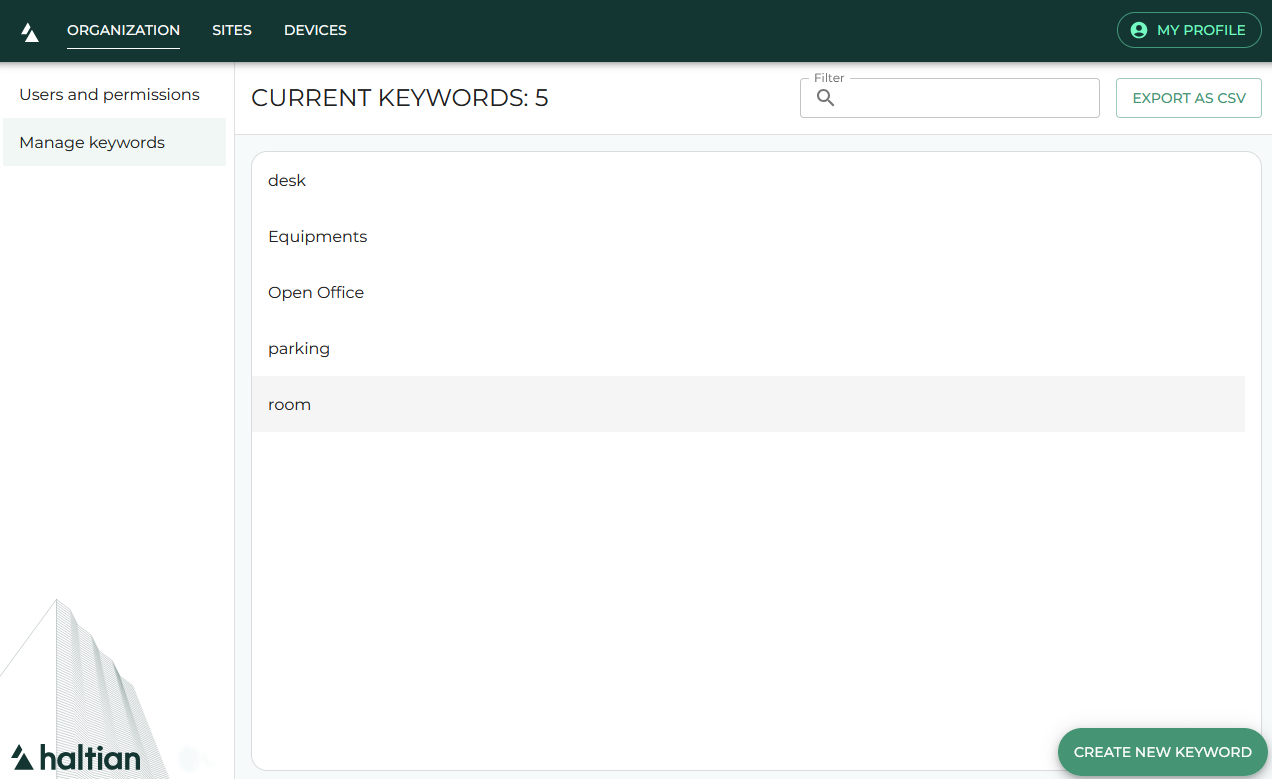
You see a list of all keywords in your organization, with a total count in the header.
Filtering Keywords
Use the filter field at the top to search for keywords by name. The list filters in real time as you type.
Creating a Keyword
- Click the + button (bottom-right corner)
- Enter the keyword name
- Click Save
The new keyword is immediately available for assignment across your organization — on devices, zones, and in keyword-based search.
Editing a Keyword
- Click a keyword in the list to open its management dialog
- You see how many devices and other items (spaces and zones) use this keyword
- Click Edit
- Enter the new name
- Confirm the change
Renaming a keyword updates it everywhere it’s used — all devices and zones with that keyword reflect the new name immediately.
Replacing a Keyword
If you want to merge two keywords — for example, consolidating Temp Sensor and Temperature Sensor into one — use Replace:
- Click the keyword you want to replace
- Click Replace
- Select the replacement keyword from the list
- Confirm
All devices, spaces, and zones that had the old keyword are reassigned to the replacement keyword. The old keyword is removed.
Deleting a Keyword
- Click the keyword you want to delete
- Click Delete
- Confirm the deletion
The dialog shows how many devices and other items will be affected. Deleting a keyword removes it from all devices and zones.
Deleting a keyword cannot be undone. Consider using Replace instead if you want to consolidate rather than remove.
Exporting Keywords
Click the Export as CSV button in the header to download the full keyword list as a semicolon-delimited CSV file. This is useful for auditing or sharing the keyword list with your team.
Viewing Devices by Keyword
After clicking a keyword in the Manage Keywords list, the management dialog shows the count of devices using that keyword. You can also navigate to a dedicated view showing all devices with a specific keyword.
Next Steps
- Devices by Keywords — Search for devices using keyword filters
- Device Details — Assign keywords on individual devices
- Site Management — Assign keywords to zones