Devices by Keywords
Overview
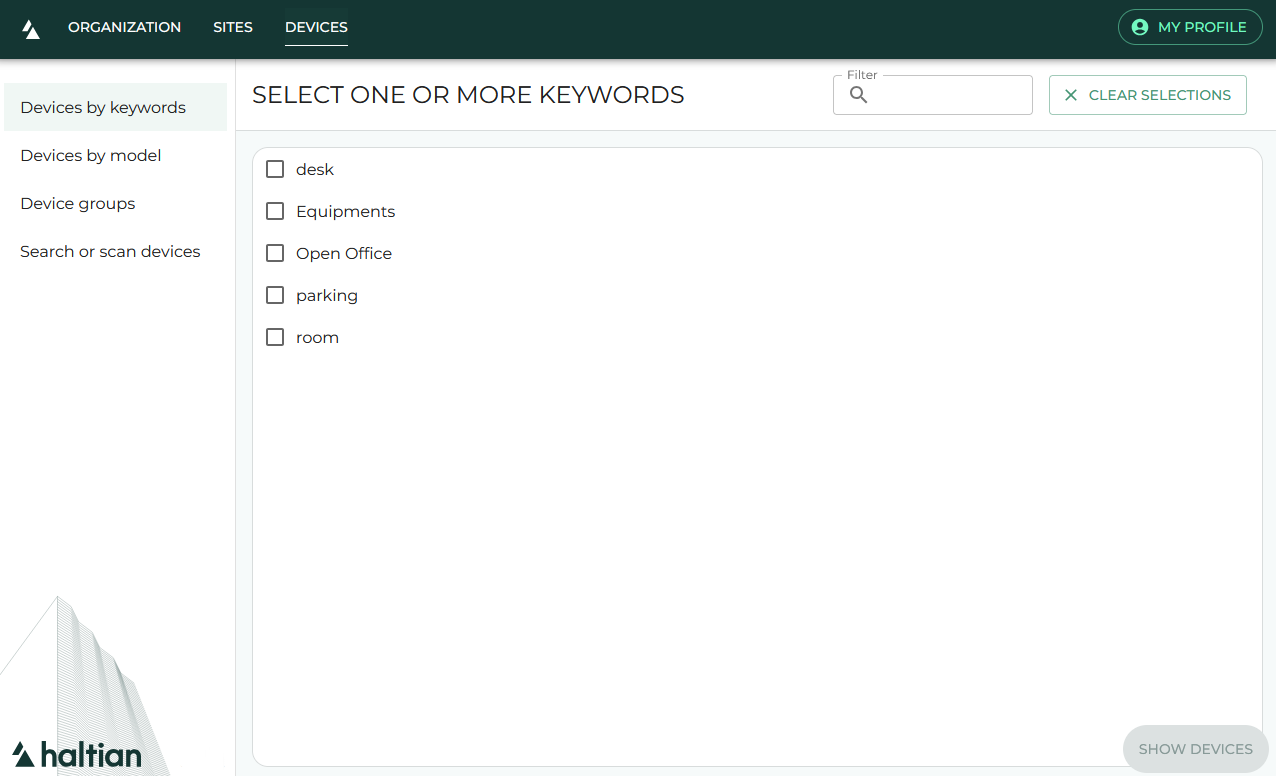
The Devices by Keywords view lets you find devices based on their assigned keyword tags. You can select one or more keywords and choose whether devices must match all selected keywords (AND) or any of them (OR).
All roles can browse devices by keywords. Managing keywords requires Designer or Manager role — see Keywords Management.
Selecting Keywords
- Click Devices in the top navigation
- Click Devices by Keywords in the sidebar
- You see a list of all keywords in your organization
Use the filter field to search for specific keywords by name. Toggle Show Assigned Only to show only keywords that have at least one device assigned.
Select keywords by checking the boxes next to them. You can select up to 10 keywords at a time.
AND / OR Search
After selecting your keywords, the app asks you to choose the search mode:
| Mode | Meaning | Example |
|---|---|---|
| OR Search | Devices matching any of the selected keywords | “Show me devices tagged Floor 1 OR Floor 2” |
| AND Search | Devices matching all of the selected keywords | “Show me devices tagged both Temperature AND Floor 1” |
Viewing Results
The results show a list of devices matching your keyword selection. Each device shows:
- Device name
- Device model
- Connection status
Click any device to open its Device Details.
Click Export as CSV in the toolbar to download the results as a semicolon-delimited CSV file.
Click the refresh button to reload results with the latest data.
Next Steps
- Keywords Management — Create and manage keywords
- Device Search — Search by name, ID, or QR code
- Devices by Model — Browse by hardware type