Device Search
Overview
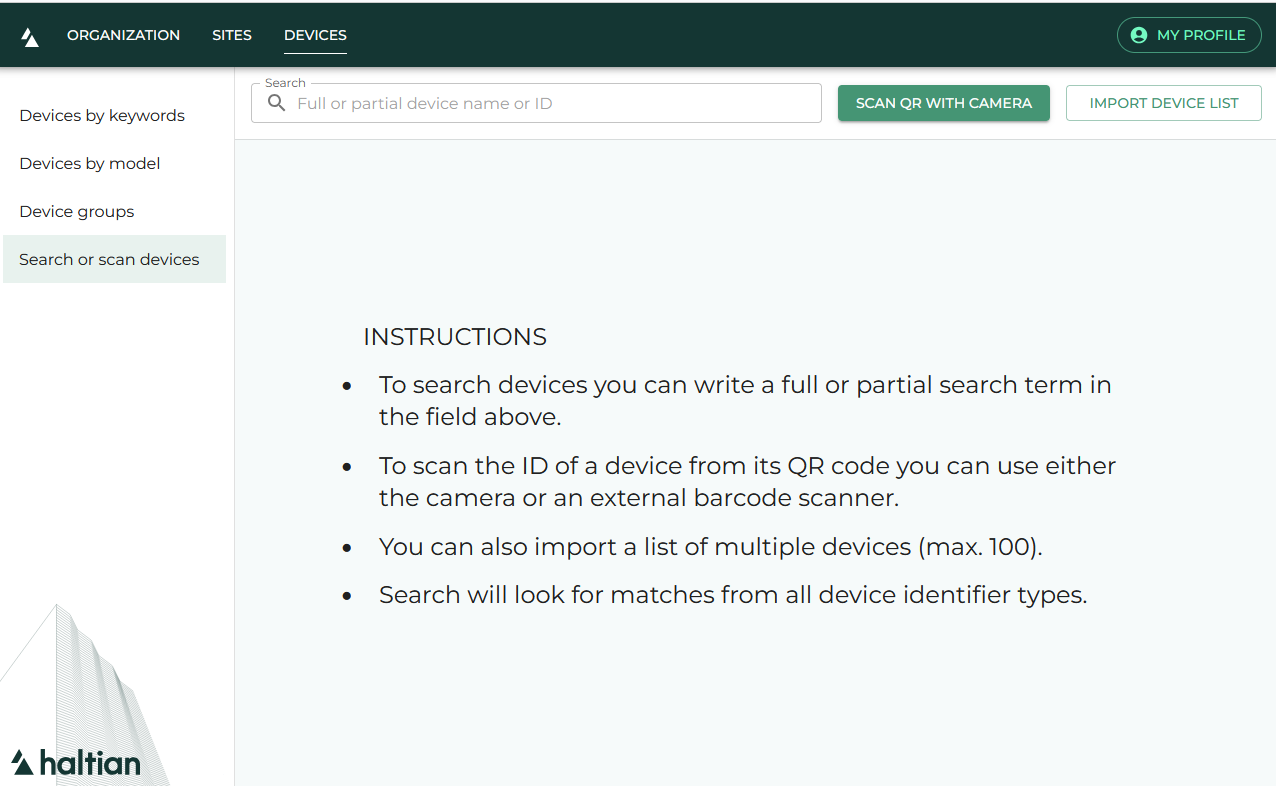
The Search or Scan Devices page lets you quickly find specific devices by typing a name or ID, scanning a QR code, or importing a list of device IDs from a CSV file.
All roles can search for devices.
Text Search
- Click Devices in the top navigation
- Click Search or Scan Devices in the sidebar
- Type in the search field
The search looks across multiple device identifier fields — device name, customer label ID, vendor serial, GIAI, and other identifiers. Results appear automatically after you stop typing.
Click the X button to clear the search and start over.
If your search returns a large number of results, a warning appears. Narrow your search terms to find the specific device you need.
QR Code Scan
Click the Scan QR Code button to open the scanner. You can scan device labels in two ways:
- Device camera — Point your device’s built-in camera at the QR code or barcode on the device label
- External QR/barcode scanner — Use a connected USB or Bluetooth barcode scanner to scan the label
The scanned value is automatically entered into the search field and the search runs immediately.
If the QR code is not recognized or the device is not found, an error message appears. Make sure the code is clearly visible and well-lit.
CSV Import
You can search for multiple devices at once by importing a CSV file:
- Click the Import button
- Select a
.csvfile from your computer - The file should contain a column with Device IDs (semicolon-delimited format)
The app reads the file, extracts Device IDs, and searches for all of them. If some devices are not found, a message tells you which IDs had no match.
Search Results
Results appear as a device list showing:
- Device name
- Device model
- Connection status
Click any device to open its Device Details.
Click Export as CSV in the toolbar to download the search results as a semicolon-delimited CSV file.
Next Steps
- Device Details — View full device information
- Devices by Model — Browse all devices by type
- Devices by Keywords — Find devices by keyword tags