Device Details
Overview
The Device Details view shows all information about a single device. You reach it by clicking any device in a device list — from Devices by Model, Device Search, or any other device listing.
All roles can view device details. Editing (name, keywords, images, notes) requires Installer, Designer, or Manager role.
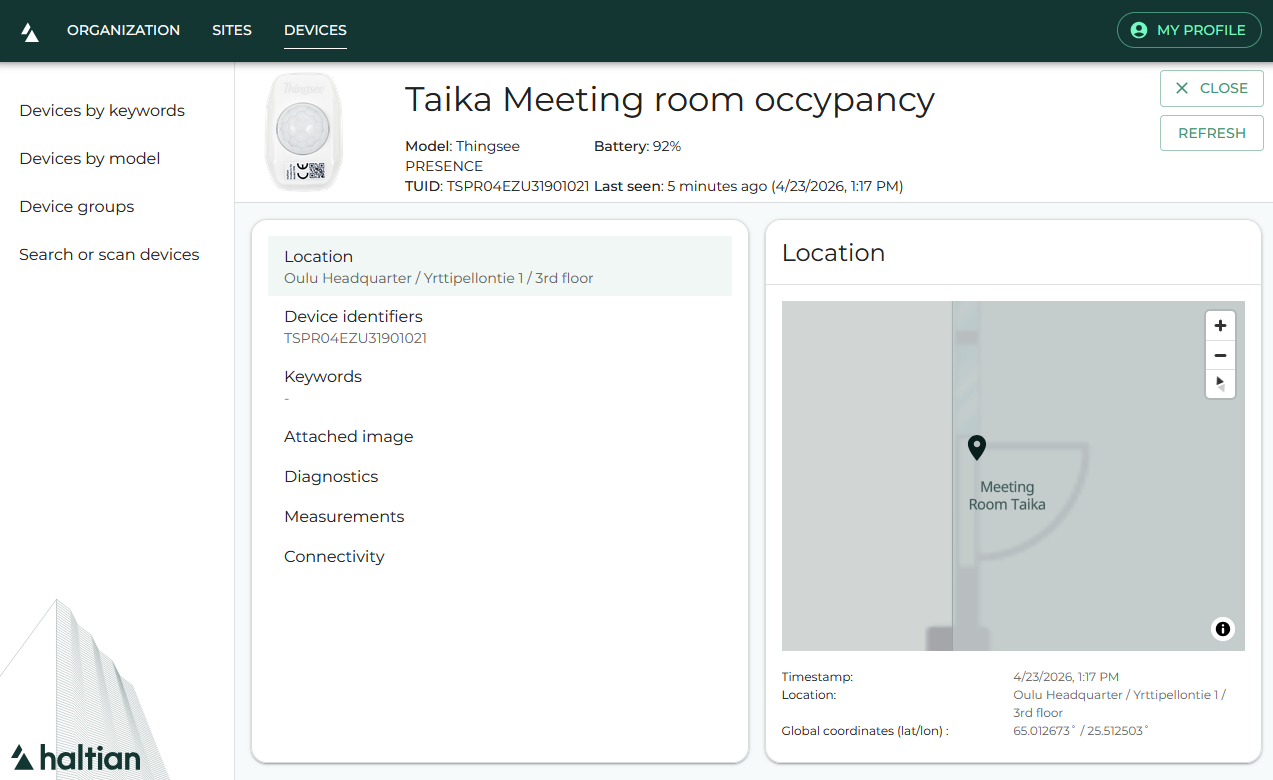
Device Header
The top of the device details page shows summary information at a glance:
- Device image (thumbnail, if uploaded)
- Device name
- Model and role
- Customer Label ID
- Battery level (percentage or voltage)
- Last seen timestamp
Use the Refresh button to reload all device data. Use the Close button to return to the previous view.
For tag-type devices, the More menu includes a Replace Tag option to swap the physical tag while keeping its configuration.
Detail Cards
The left panel lists the available detail cards. Click any card to view its content in the right panel:
Location
Shows where the device is physically located:
- For fixed devices: The site, building, and floor the device is assigned to, plus its geographic coordinates (latitude/longitude)
- For tags (tracking devices): An interactive map showing the device’s position on the floor plan. Use the time range dropdown (from 1 minute to 30 days) to see position history. RSS (Received Signal Strength) values are also displayed for position debugging.
Identifiers
Lists all device identifiers in a single view:
| Field | Description |
|---|---|
| Device Name | The display name (editable — click pencil icon) |
| Customer Label ID | Your organization’s label for the device |
| GIAI | Global Individual Asset Identifier |
| TUID | Thingsee Unique Identifier |
| Vendor Serial | Manufacturer serial number |
| Wirepas Node ID | Mesh network node identifier |
| Device ID | System-level unique identifier |
Editing the device name requires Installer, Designer, or Manager role. The device name must be unique across your organization.
Keywords
Manage keyword tags assigned to this device:
- View all keywords in your organization as a checklist
- Check or uncheck keywords to assign or remove them from the device
- Toggle Show Assigned Only to filter the list to keywords currently on this device
- Changes are saved immediately when you check or uncheck a keyword
Assigning keywords requires Installer, Designer, or Manager role.
Images
Upload and manage a device photo:
- No image: Click Add Image to upload a photo (JPEG, PNG, or WebP)
- With image: View the current photo, click Change Image to replace it, or Delete Image to remove it
A loading indicator appears while the image uploads. Images are stored as thumbnails associated with the device.
Managing images requires Installer, Designer, or Manager role.
Notes
Add plain-text notes to a device — useful for recording installation remarks, maintenance history, or operational observations.
Viewing notes:
- Notes are listed newest-first, each showing a relative timestamp and a preview of the first 100 characters
- Click a note to open the full text in a read-only dialog
Creating a note:
- Click Create new note at the bottom of the card
- Enter your note text in the dialog (up to 1000 characters — a character counter is shown)
- Click Save
Editing a note:
- Click the edit icon on a note to reopen the text dialog with the existing content
- Modify the text and click Save
Deleting a note:
- Click the delete icon on a note
- Confirm in the dialog — this action cannot be undone
Viewing notes is available to all roles. Creating, editing, and deleting notes requires Installer, Designer, or Manager role.
Diagnostics
View raw diagnostic data from the device in JSON format across separate tabs:
- Wirepas Diagnostics — Network-level diagnostic data
- Wirepas Application — Application-level diagnostic data
- Wirepas Haltian Tag — Tag-specific diagnostics (shown only for tag devices)
The data is displayed with syntax highlighting in a scrollable viewer. Use the tabs to switch between diagnostic types.
Connectivity
Shows the device’s network connectivity information:
| Field | Description |
|---|---|
| Organization UUID | The organization the device belongs to |
| Wirepas Network ID | The mesh network identifier |
| Wirepas Diagnostics | Last diagnostic report timestamp |
| Next Hop RSSI | Signal strength to the next network node |
| Measured RSS | Received Signal Strength measurement |
For gateway devices: A list of connected devices (TUIDs) with a count. Click any connected device to navigate to its details.
For non-gateway devices: The last gateway the device connected through, shown as a clickable link.
Measurements
Shows the latest measurement values from the device:
- Each measurement type is listed with its name and last-seen timestamp (both relative and absolute)
- The measurements shown depend on what the device reports — different device models report different measurement types
Check the device specifications for your specific device model to see which measurements it supports.
Next Steps
- Device Search — Find other devices
- Keywords Management — Create and manage keywords
- Site Management — Manage the space hierarchy where devices are installed