Device Details
For Viewers & Installers
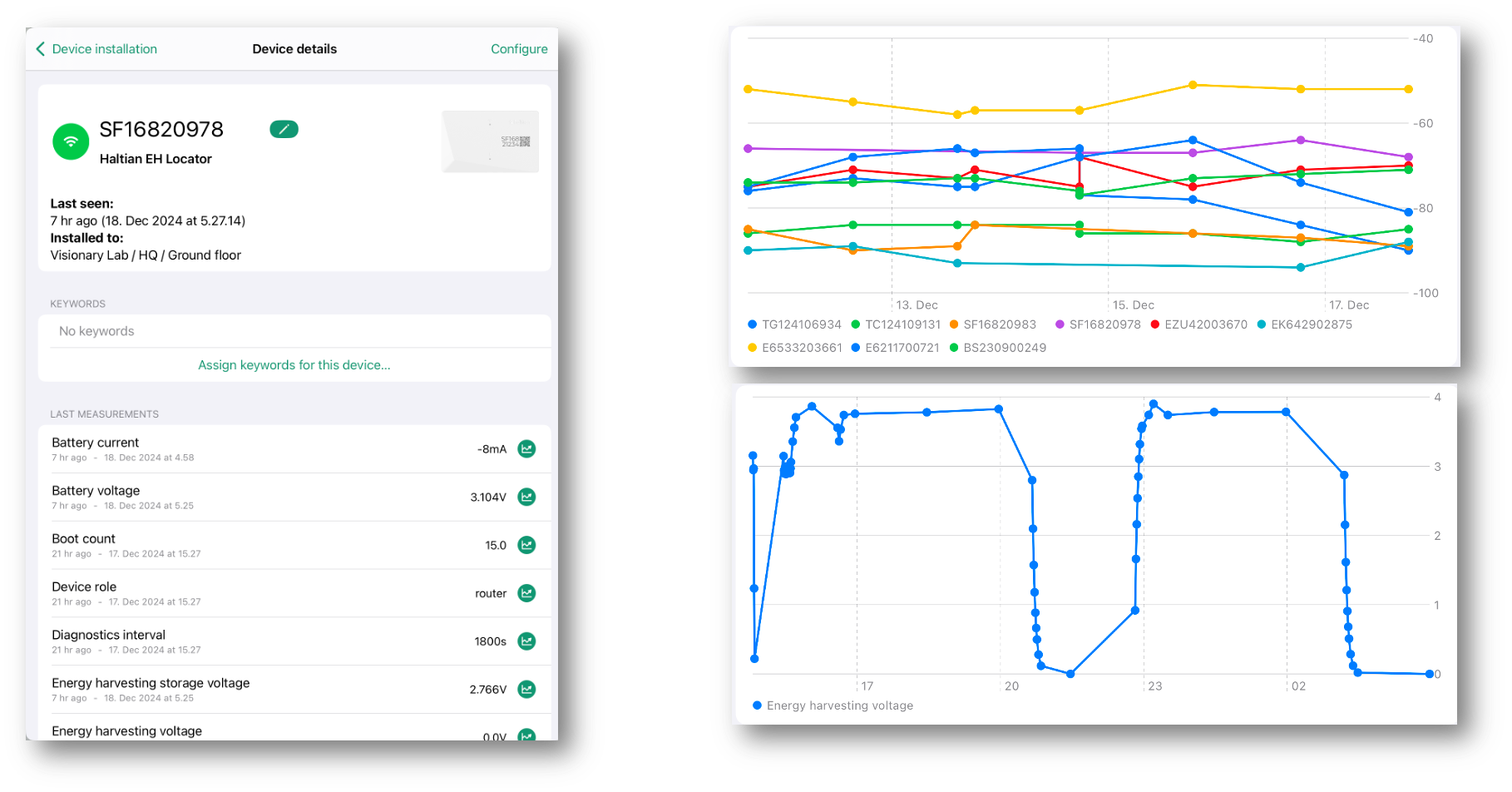
The device detail view provides comprehensive information about a single device, including measurements, location, keywords, notes, and configuration options.
Accessing Device Details
Roles: All users
Open device details by:
- Tapping a device in any device list
- Scanning a device QR code
- Tapping a device on the map
- Selecting from search results
Device Card
At the top of the view, the device card shows:
- Device icon: Visual representation of the device type
- Device name: Editable name (for authorized users)
- Device type: Product name and model
- Last seen: When the device last communicated
- Connection status: Visual indicator of connectivity
Editing Device Name
Roles: Installer, Designer, Manager
- Tap the device name
- Enter a new name
- Press Return or tap Save
Configure Button
Tap Configure in the toolbar to access:
- Device configuration history
- Group configuration (for device groups)
Roles: Installer, Designer, Manager
Installation Location
View and edit where a device is physically installed.
Location Information
The Installation Location section shows:
- Site / Building / Floor / Zone: Full location path
- Local coordinates: X, Y position in meters on the floor plan
- Global coordinates: Latitude and longitude (if available)
Editing Device Position
Roles: Installer, Designer, Manager
If the floor has a floor plan:
- Tap Position in the section header
- The floor plan opens with the device’s current position
- Drag the crosshair to the new location
- Tap Save to update the position
- Tap Cancel to discard changes
Associating to Space (No Floor Plan)
Roles: Installer, Designer, Manager
If the floor doesn’t have a floor plan:
- Tap Assign to associate the device with the space
- Confirm the association
- The device is linked to the space without a specific position
Uninstalling a Device
Roles: Installer, Designer, Manager
- Swipe left on the location row
- Tap Uninstall
- Confirm the uninstallation
This removes the device from its current location but doesn’t delete the device from the system.
Keywords
View and manage keywords assigned to this device.
Viewing Keywords
Keywords appear as colored tags in the Keywords section.
Assigning Keywords
Roles: Installer, Designer, Manager
- Tap Assign keywords for this device…
- Select/deselect keywords from the list
- Checkmarks indicate currently assigned keywords
- Save your changes
Keywords help categorize and filter devices. See Keywords Management for more details.
Notes
View and manage notes attached to this device.
Viewing Notes
Notes appear in chronological order (newest first) with:
- Note text
- Creation date and time
- Author (who created the note)
Adding a Note
Roles: Installer, Designer, Manager
- Tap + (Add new note) in the Notes section header
- Enter your note text
- Tap Save
Editing a Note
Roles: Installer, Designer, Manager
- Tap an existing note
- Edit the text
- Tap Save
Deleting a Note
- Swipe left on a note
- Tap Delete
- Confirm deletion
Measurements and Charts
View sensor data and historical measurements from the device.
Last Measurements
The “Last measurements” section shows all measurement types supported by this device:
- Current value: Latest reading with units
- Timestamp: When the measurement was taken
- Unit: Measurement unit (°C, %, V, ppm, etc.)
Common Measurement Types
- ambientTemperature: Room/environment temperature (°C)
- humidity: Relative humidity (%)
- co2: Carbon dioxide concentration (ppm)
- tvoc: Total volatile organic compounds (ppb)
- batteryVoltage: Device battery voltage (V)
- batteryLevel: Battery charge percentage (%)
- position: Device location coordinates (m)
- movementLevel: Current movement intensity
- occupancyStatus: Room occupancy state
- ambientLight: Light level (lux)
- barometricPressure: Atmospheric pressure (hPa)
Viewing Charts
- Tap the chart icon next to any measurement
- View historical data in chart form
- Adjust the time range as needed
- Pinch to zoom or swipe to pan
Position Visualization
For devices with position tracking:
- View position on the floor plan
- See movement paths over time
- View position relative to RSS beacons
Location History
For devices that track position over time, view historical location data.
Chronological History
Tap Location History - Chronological to see:
- Time-ordered list of positions
- Timestamps for each position
- Movement visualization on floor plan
Zone-Based History
Tap Location History - By zones to see:
- Time spent in each zone
- Zone entry/exit events
- Cumulative statistics
Device Identifiers
View and manage all identifiers associated with the device.
Identifier Types
| Identifier | Description |
|---|---|
| External ID | User-definable identifier for integration with external systems |
| Device ID | Internal UUID for the device |
| Customer Label ID | Printed label identifier |
| Vendor Serial | Manufacturer serial number |
| Wirepas Node ID | Wirepas mesh network node identifier |
| Wirepas Network ID | Wirepas network identifier |
| GIAI | Global Individual Asset Identifier |
| Organization ID | Owning organization identifier |
Copying Identifiers
Tap the clipboard icon next to any identifier to copy it to the clipboard.
Setting External ID
Roles: Installer, Designer, Manager
Manual entry:
- Tap the External ID field
- Enter the desired identifier (max 100 characters)
- Press Return to save
Scan from QR/barcode:
- Tap Assign from barcode or QR code
- Scan the code
- The value is automatically saved
Claiming Unclaimed Devices
If the device has no Organization ID, you can claim it:
- Tap Claim the device
- The device is assigned to your organization
This is typically needed for new devices that haven’t been assigned to an organization yet.
Device Configuration
Access device configuration and settings.
Viewing Configuration History
- Tap Configure in the toolbar
- View the transaction history for this device
- See past configuration changes with:
- Timestamp
- User who made the change
- What was changed
Group Configuration
For devices that are members of device groups:
- Tap Configure in the toolbar
- Manage group-level settings
- Apply configurations to all group members
Next Steps
- Keywords Management - Organize devices with keywords
- Device Installation - Install and position devices
- Configuration Log - Review all device changes
- Device Alerts - Monitor device health