Site Management
Create and manage the site hierarchy for your organization
For Designers & Managers
Roles: Installer (view), Designer (view/edit), Manager (full access)
Create and manage the site hierarchy for your organization.
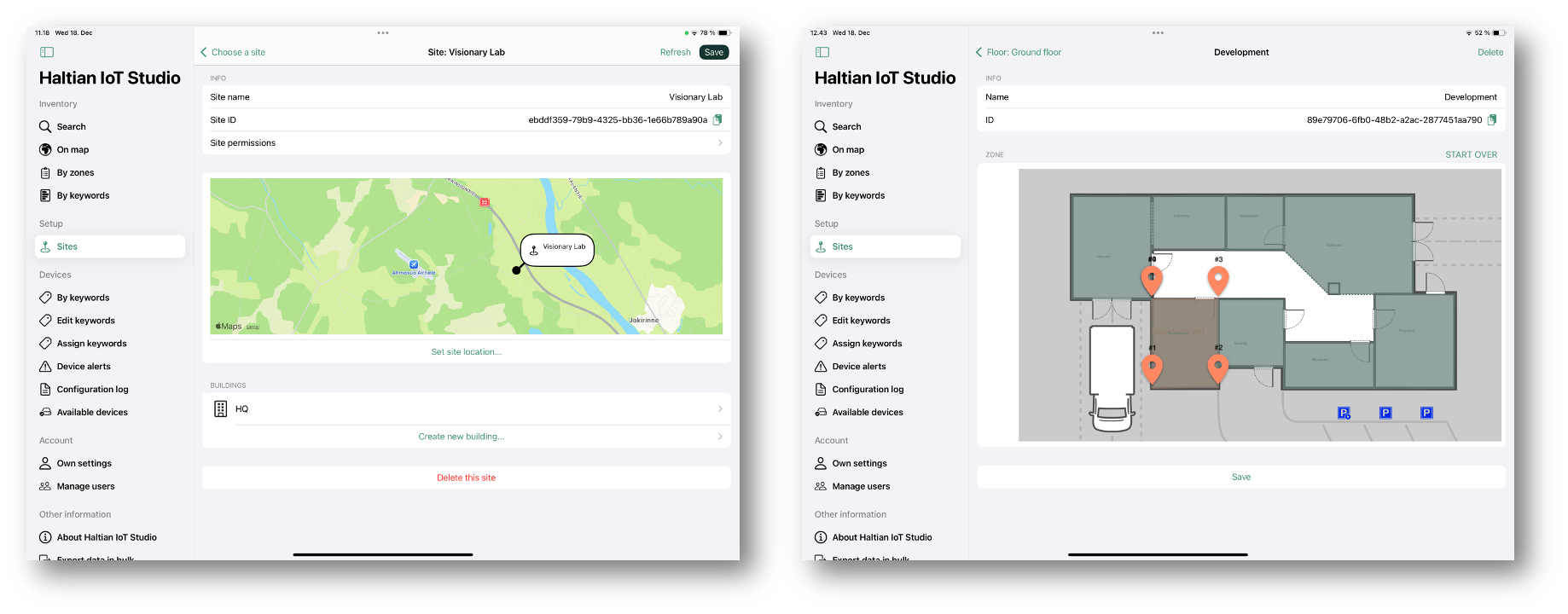
Accessing Site Management
From the sidebar, tap Sites under the Setup section.
Creating a New Site
Roles: Manager only
- Tap Create new site in the toolbar
- Enter a name for the site
- Tap Create
Viewing Site Details
- Tap a site from the list
- View buildings within the site
- Navigate to floors and zones
Site Hierarchy
Sites are organized in a hierarchical structure:
Site (Location)
└── Building
    └── Floor
        └── Zone
Managing Buildings
Within a site, you can create and manage buildings:
- Select a site
- Add new buildings
- Edit building names
- Delete unused buildings
Managing Floors
Within a building, you can create and manage floors:
- Select a building
- Add new floors
- Set floor names or numbers
- Upload floor plans
- Delete unused floors
Deleting a Site
Roles: Manager only
- Swipe left on a site
- Tap Delete
- Confirm the deletion
Warning: Deleting a site removes all contained buildings, floors, zones, and device associations. This action cannot be undone.
Best Practices
Site Organization
- Create one site per physical location or campus
- Use descriptive names (e.g., “Headquarters”, “Manufacturing Plant North”)
- Mirror your real-world physical structure
Building Organization
- Name buildings consistently (e.g., “Building A”, “Main Building”)
- If a site has only one building, you still need to create it
Floor Organization
- Use consistent naming (e.g., “Floor 1”, “Floor 2” or “1st Floor”, “2nd Floor”)
- Include special floors (basement, mezzanine) with clear names
- Order floors logically (ground floor first, then ascending)
Site Setup Workflow
For a complete site setup:
- Create the site (Manager)
- Add buildings to the site (Designer/Manager)
- Add floors to each building (Designer/Manager)
- Upload floor plans for each floor (Designer/Manager)
- Configure floor plan coordinates (Designer/Manager)
- Create zones within floors (Designer/Manager)
- Install devices on floors (Installer/Designer/Manager)
Next Steps
- Floor Plan Setup - Upload and configure floor plans
- Zone Management - Create zones within floors
- Device Installation - Install devices on floors