Tracking
Where tagged equipment was at the last midnight, and where it spent its time
Overview
Tracking shows where tagged equipment was in your building at the last midnight: the zone each item was in, where it was on the floor plan, and where it spent its time over a period. Tracked items are objects such as laptops, trolleys or shared tools. What to tag and how to name it is up to your organization. Tracking is for objects, not for people.
Tracking is off until you switch it on
Open the account menu at the top right and, under Apps, switch Tracking on. It then appears in the app switcher and on the landing page. See The account menu.
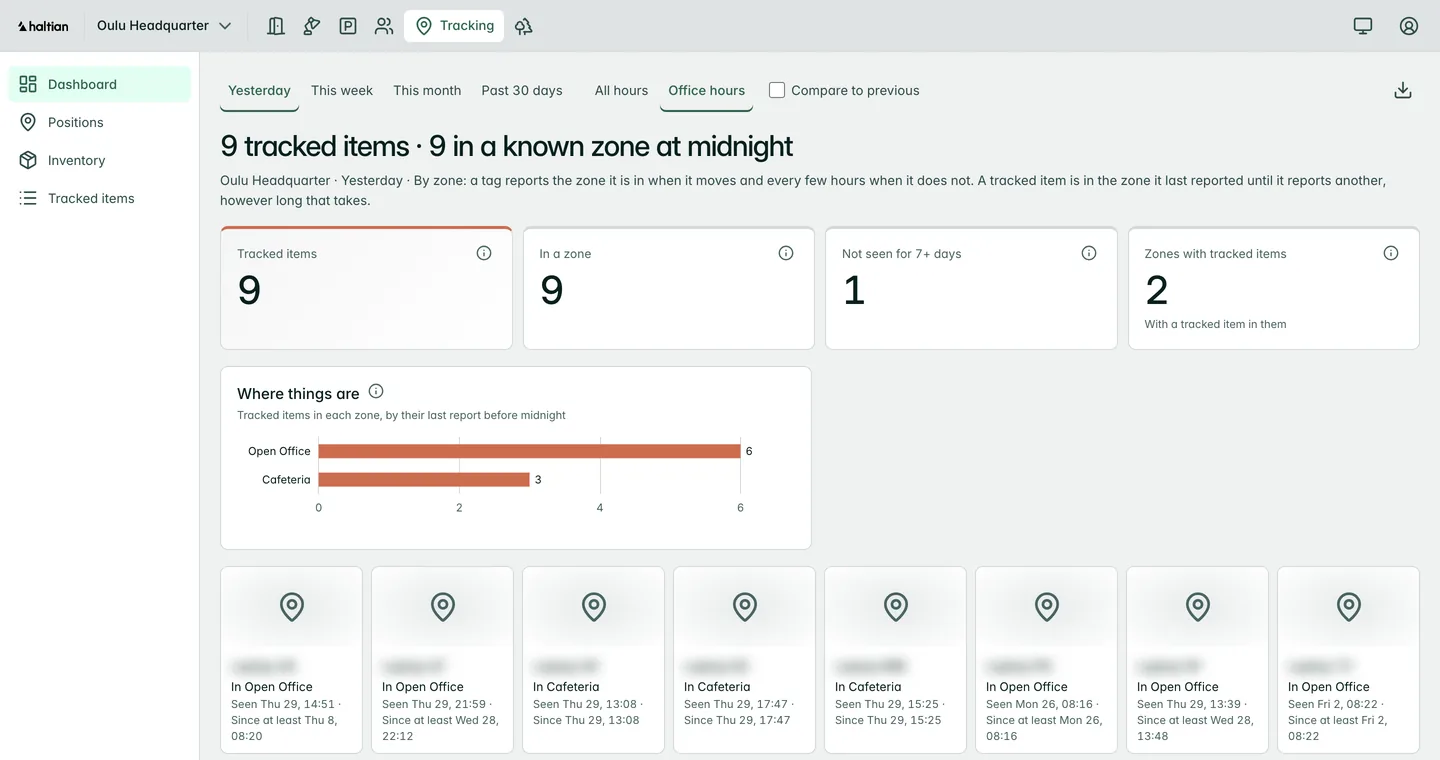
The Tracking dashboard, with demo data; item names blurred
Who it helps
| Person | What they get |
|---|---|
| Anyone who needs a shared item | The zone an item was in at midnight, and when it last reported before then |
| Facility or operations manager | How many items are in each zone, how often items move between zones, and where the time goes |
| Equipment owner | Items not seen for 7 days or more, so missing equipment is noticed early |
| Person who sets up the devices | Which tagged devices are ready for Tracking, and which report no position |
Views
| View | What you see |
|---|---|
| Dashboard | Tiles for Tracked items, In a zone, Not seen for 7+ days and Zones with tracked items. Where things are: the number of items in each zone. A card per item with its zone and when it was last seen. Zone changes by hour or by day, a Most moved table, and Where the time went |
| Positions | The floor plan with zone outlines and a marker per item, with three layers: Time spent shades each 2 m square by the time items spent there, Trails joins one item’s reported positions in order, and At midnight shows each item at its last position. A list gives each item’s floor, last report and whether it was Moving or Idle |
| Inventory | Tags seen in the last 1, 3, 7 or 30 days, counted back from midnight. Tiles for Tags seen, In a zone, Outside of zones and Moving, a By zone table and a Tags table. Filter by Keywords to keep only tags carrying them |
| An item’s page | Opened from an item’s card, Zones › in Positions, or its name in Inventory. The zone it spent Most time in, Zones, Zone changes and the time Not reported, the time per zone, and a Zone timeline of every stay |
| Tracked items | The devices tagged for Tracking, with their space, readiness (Ready when the device reports its position) and when each was last seen |
| Settings | The keyword that brings a device into the app, what makes it ready, the current space, and the settings that are fixed |
Dashboard and Positions use the period bar. Dashboard, Positions and Inventory can be exported.
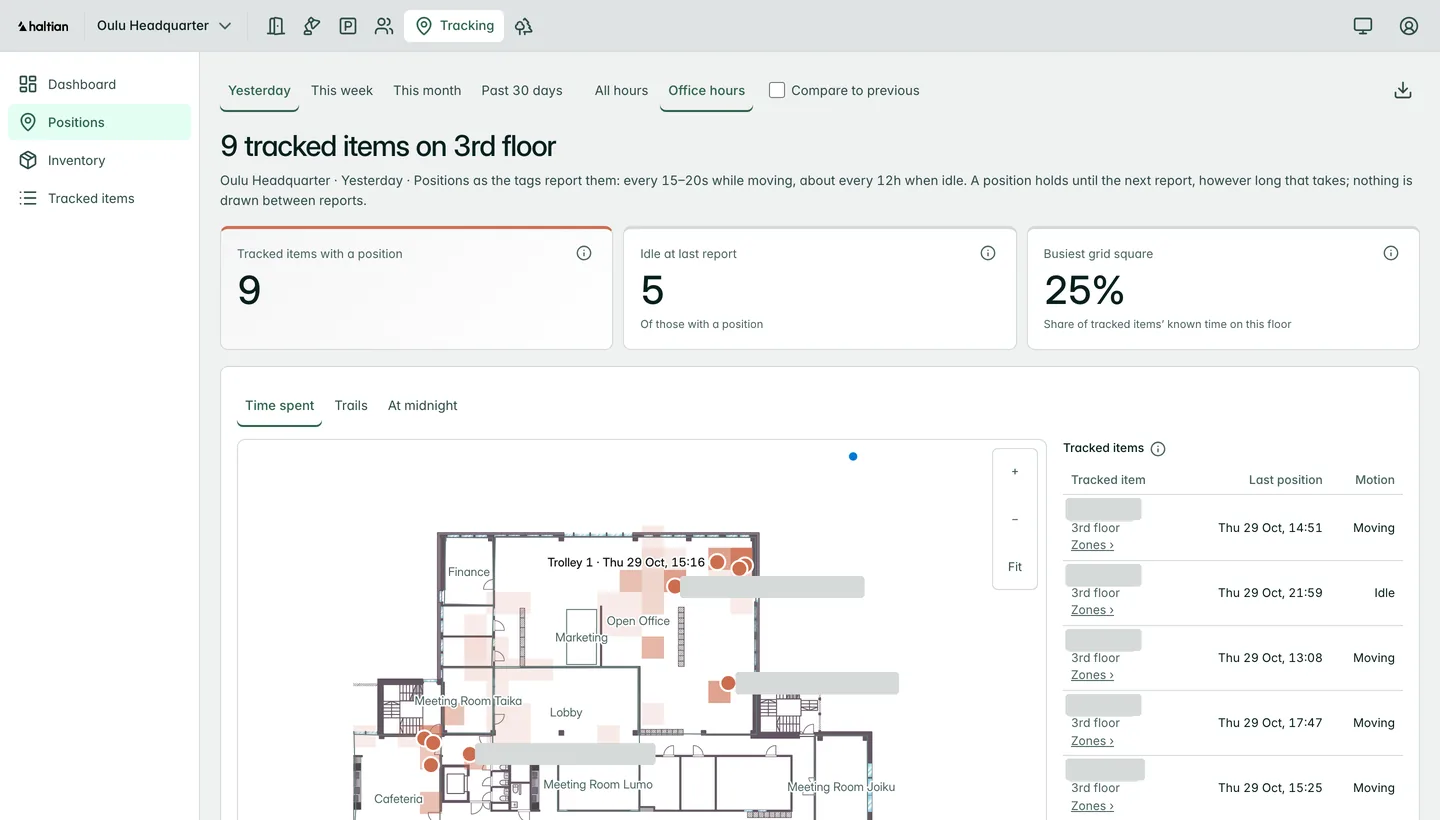
Positions with the Time spent layer, with demo data; item names hidden
Key terms
- Where things are — each item in the zone it last reported before midnight, the location it is assumed to be in until a later report says otherwise (GS1 EPCIS).
- Where the time went — the share of each item’s known time spent in each zone.
- Zone change — a move to a different zone. Repeated reports of the same zone are not a change.
- Moving and Idle — the tag’s own report at its last position before midnight. The app does not say whether an item is in use.
Set up in Haltian Field and Haltian Studio
- Add the keyword
trackedortrackingto the device, in Haltian Studio or Haltian Field. Any keyword containing “equipment” counts too, such as Office Equipment. - A tag is placed by the zone it last reported, so it needs no space or fixed position of its own.
- In Haltian Studio, draw and name zones on each floor: Tracking says where an item is by zone, and the zone’s floor decides which space it is in.
- Name each tracked item after the item, not a person.
Good to know
- An item appears in Tracking when its device carries one of the keywords above and reports a position or a zone. A tagged device that reports no position is named in a note.
- In Inventory, a tag is a device of a tag model, as in Haltian Field: Haltian’s tag models, Confidex Viking tags and Teltonika EYE tags, with or without a keyword.
- Reading a month of history takes a moment, and the page shows which item it is reading. For a very busy tag, the read can stop before the end of the period; a note then names the item and the time the read reached.
- Trails are drawn for one item at a time.
Try it
- Switch Tracking on in the account menu, open it, and select a building or floor.
- On Dashboard, read Where things are and find an item’s card to see its zone at midnight.
- Choose This week and look at Zone changes and Most moved.
- Open Positions, choose At midnight to find an item on the plan, then select it and choose Trails or Time spent.
- Export the report as CSV or Print / PDF.