Getting started
Signing in
Open stage.eu.haltian.io. The sign-in page offers two ways in.
With your Haltian IoT account
| Field | Description |
|---|---|
| Organisation | Your Haltian IoT organization. It is part of the credential, not a choice made after signing in |
| The email of your Haltian IoT account | |
| Password | Your account password. The eye icon shows the password while you type |
Select Remember the organisation and email on this device to have them filled in next time, then select Sign in.
With single sign-on
Select Single sign-on, enter your organization, and sign in through your company’s own identity provider, as in Haltian Studio. It works for organizations that have single sign-on set up in Haltian IoT. For any other organization the page says so, and you sign in with your password instead.
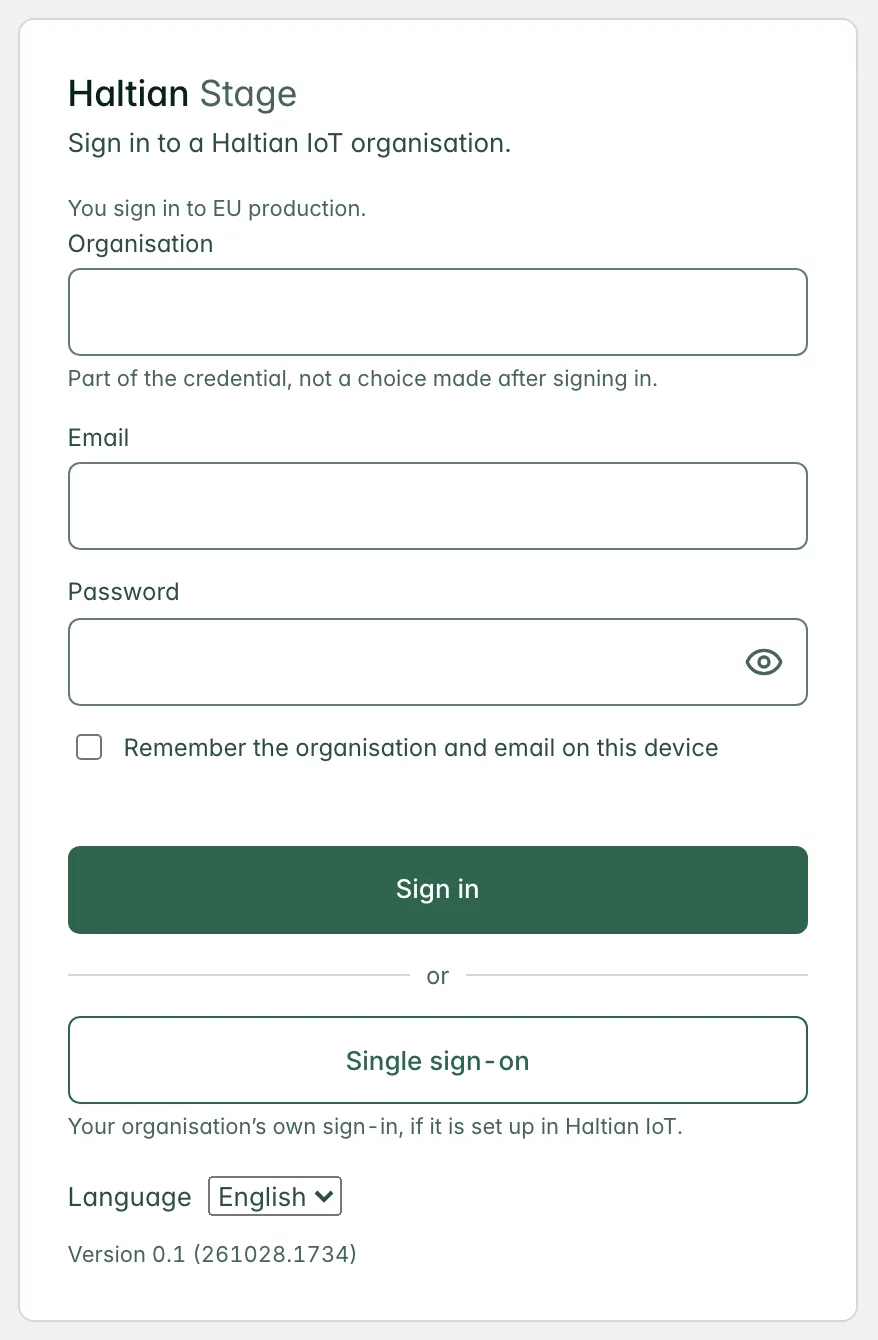
The sign-in page
The sign-in page also has the Language picker and shows the version of Haltian Stage.
The landing page
After you sign in, Stage opens on a world map of your organization’s locations. Choose a location, then open any app for it. The Haltian logo at top left brings you back to the map.
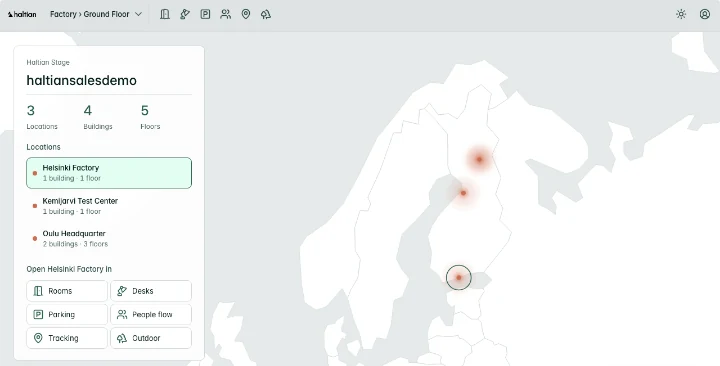
The landing page, with demo data
Every sign-in opens the landing page, also after you sign out. The one exception is a link to a view: when you open a link to a report before signing in, for example one someone sent you, Stage opens that view with its period once you sign in.
Moving around
| Where | What it does |
|---|---|
| App switcher (top bar) | Moves between Rooms, Desks, Parking, People flow, Outdoor and Tracking |
| Space selector (top bar) | Chooses the location, building or floor the reports cover, including everything in it |
| Theme (screen icon, left of the account menu) | Chooses System (the default, follows your operating system), Light or Dark. The choice is kept in your browser |
| Account menu (person icon, top right) | Your account, the apps you see, the language and signing out |
| Rail (left) | The views of the current app, with Help at the bottom |
The address of a page keeps the view and the period, so a link you send opens the same report.
The account menu
The account menu is the person icon at the top right. It shows who is signed in, and holds the choices that are yours rather than the organization’s.
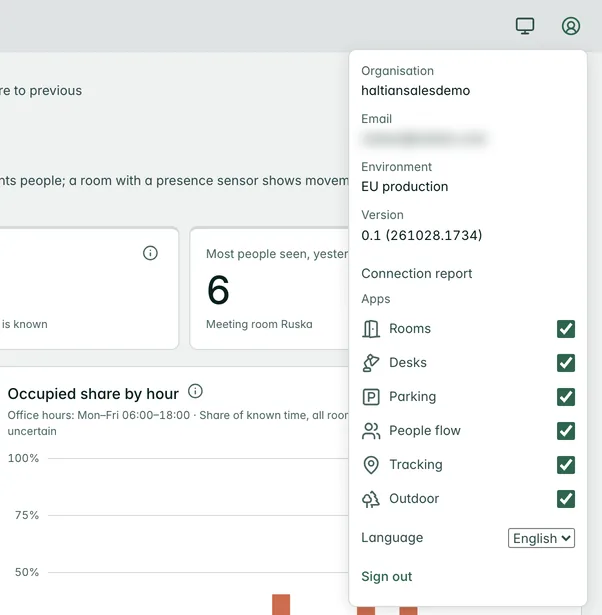
The account menu; the email is blurred
| Item | What it does |
|---|---|
| Organisation | The organization you are signed in to |
| The email you signed in with | |
| Environment | Where Haltian IoT runs for this sign-in |
| Version | The version of Haltian Stage you are using |
| Connection report | What the organization contains and how Haltian Stage reads it |
| Apps | One checkbox per app, to show or hide it |
| Language | The language of the interface |
| Sign out | Ends the session in this browser. The next sign-in opens the landing page |
Showing only the apps you use
- Open the account menu at the top right.
- Under Apps, clear the checkbox of each app you do not need. It leaves the app switcher and the landing page at once.
- To bring an app back, select its checkbox again.
Tracking is off until you select it; every other app is on until you clear it. At least one app stays on. A link or bookmark to an app you have turned off opens the landing page instead.
Hiding an app changes only what you see. The data, and what other people see, stay as they are. The choice is kept in this browser, for your account in this organization: another browser or device starts with Tracking off and every other app on.
Language
Haltian Stage is in English, Finnish (suomi), Swedish (svenska) and German (Deutsch). It follows your browser’s language until you choose one in the Language picker, on the sign-in page or in the account menu.
Headings, figures, chart labels, the (i) explanations, Help, error messages and exported reports all follow the language. Numbers follow your region. An exported file keeps the same English file name in every language.
Reports in every app
The apps share the same way of choosing a period and reading the figures. Each app page notes where it differs: Outdoor has no office hours and no comparison.
The period bar

The period bar, with Compare to previous on
| Control | What it does |
|---|---|
| Yesterday (default), This week, This month, Past 30 days | The period the report covers. Every period ends at midnight |
| Office hours (default) or All hours | Measure against office hours, Mon–Fri 06:00–18:00 until you change them in Settings, or against the whole day |
| Compare to previous | Shows the previous period beside the current one, in tiles and as faint bars in the charts |
| Export | Downloads the report as CSV or opens Print / PDF |
- This week runs from Monday to yesterday; on a Monday it is the whole of last week, named Last week.
- This month runs from the 1st to yesterday; on the 1st it is the whole of last month, named Last month.
- Past 30 days is the 30 whole days ending yesterday.
- With Office hours on, Yesterday is the last working day: on a Sunday or a Monday it shows the Friday before, and the button names that day by its date, such as “Fri 23/10”. With All hours it is the calendar day before today.
- Compare to previous compares yesterday with the same weekday a week earlier, a part of this week or month with the same days of the one before, and a whole week, month or 30 days with the one before.
- Office hours apply to every app that uses them and are kept in your browser only, so another person or browser starts from Mon–Fri 06:00–18:00.
You cannot choose an older date range.
Exporting a report
The export button at the right end of the period bar offers CSV, a table file for Excel, Numbers or Google Sheets, and Print / PDF, the browser’s print dialog on an A4 landscape layout. The file is made in your browser and no data is sent anywhere. Its name carries the last day the report covers. There are no scheduled or emailed reports.
How the numbers are made
Every chart and headline figure has an (i) beside its title. It opens what the figure answers, how it is made and which Haltian IoT measurements it is made from, with a link to the app’s Help.
- Haltian sensors send a value when it changes, not on a clock. A value holds until the next one, however long that takes: no report means no change. Only the time before a sensor’s first report counts as unknown. See Event-based measurements.
- Shares and means are weighted by how long each value held. Unknown time is left out.
- Every figure shows how much of its time was known. Below 80 % known it is marked uncertain rather than hidden. Only a figure with no known time shows “—”.
- Data is read when the page loads and reused for up to 1 h as you move between views. The next day’s data appears after midnight, when you open the view again.
Help and the setup check
Each app’s Help page, at the bottom of its rail, says what to set up in Haltian Field and Haltian Studio for its reports to work, and runs a setup check. It names each device that has no space, no position the app can draw, or measures less than the app’s reports use.
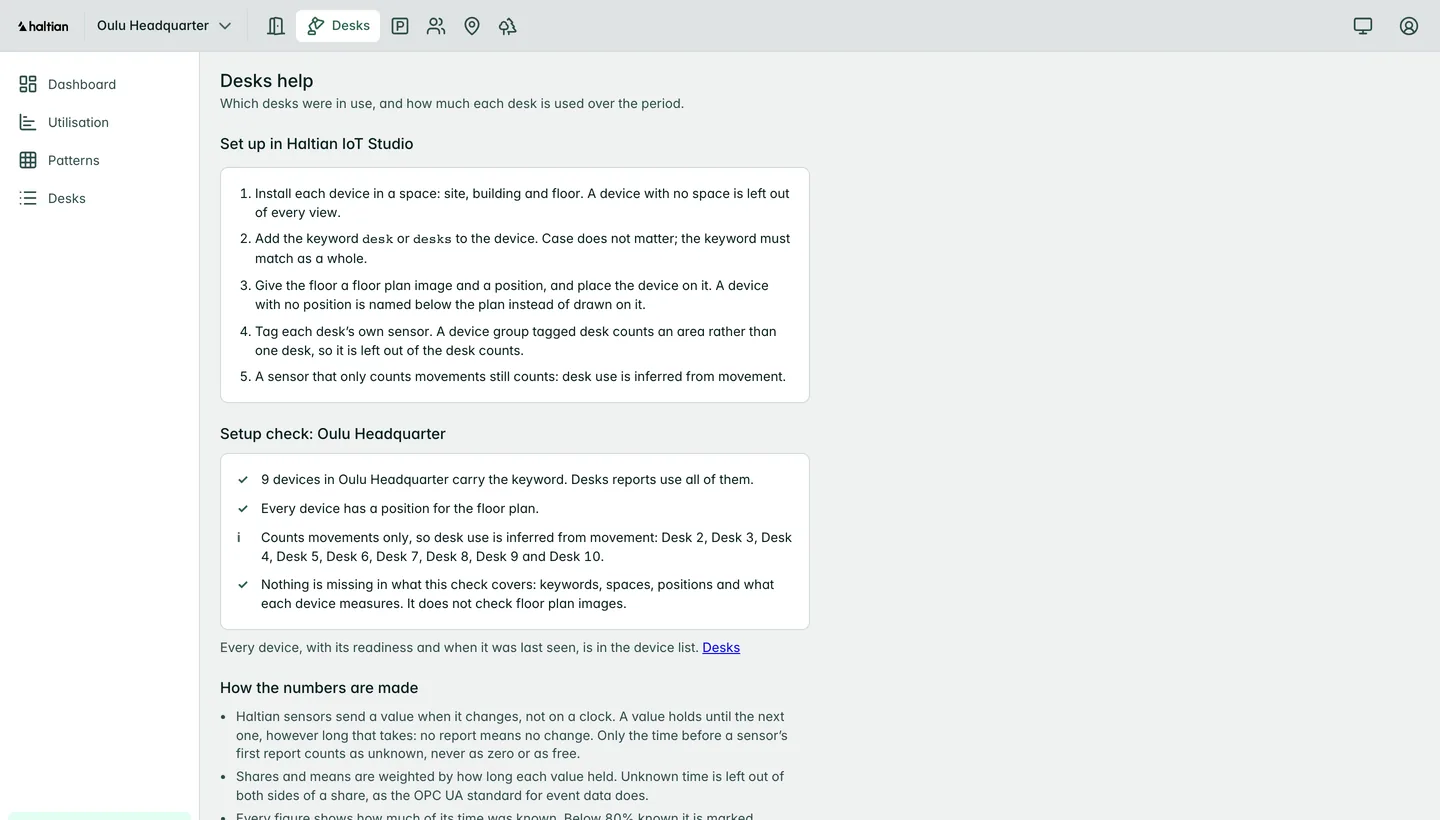
The Desks Help page, with demo data
Each app reports on devices that carry its keyword. You add keywords in Haltian Studio or Haltian Field, and install devices in spaces in Haltian Field. A keyword matches in any case, but must match as a whole. In Rooms, Desks, Parking, People flow and Outdoor, a device with no space is left out of every view; Tracking places an item by the zone it last reported. See Keywords management in Haltian Studio, and Keywords and Device installation in Haltian Field.