Getting Started
Get started with Haltian Finder - Login, navigation, and first steps
This guide walks you through logging in to Haltian Finder and navigating the interface.
Login
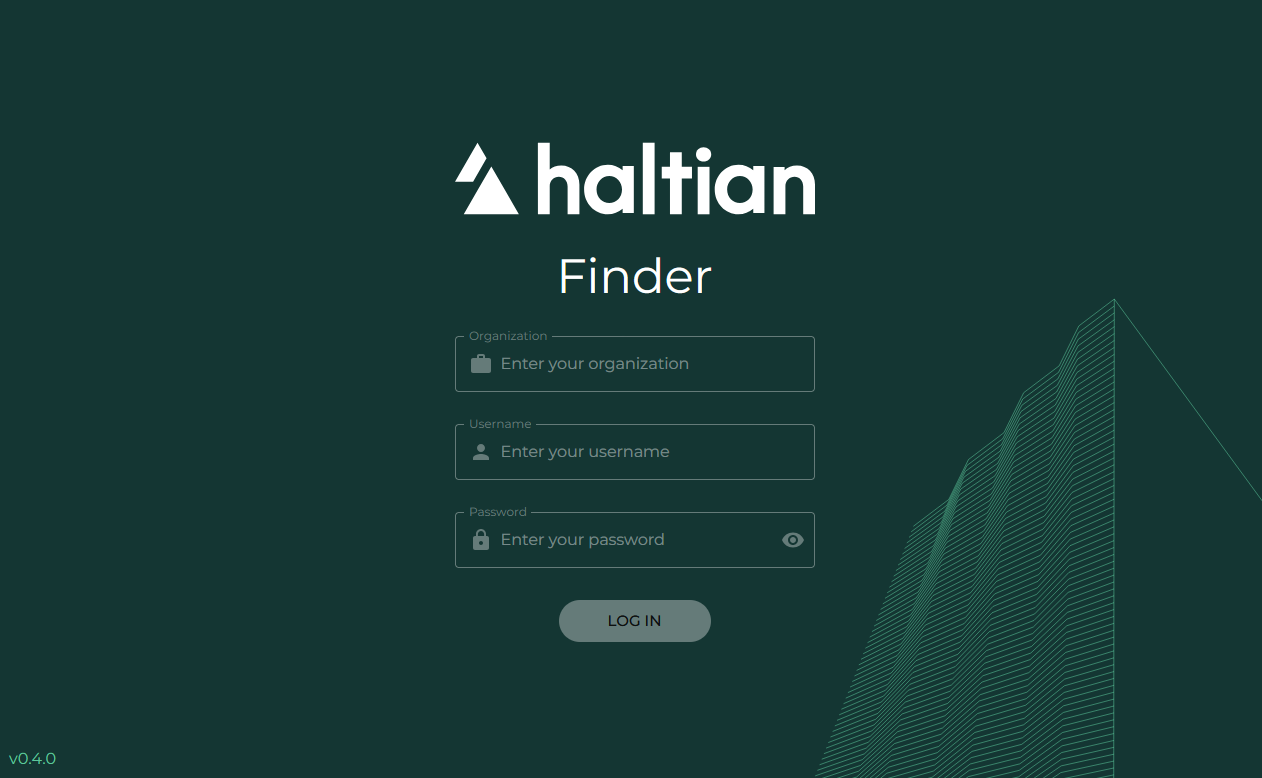
- Open haltian-finder.eu.haltian.io in your browser
- Enter your credentials:
| Field | Description |
|---|---|
| Organization | Your Haltian IoT organization name |
| Username | Your email address |
| Password | Your account password |
- Click Sign In
Account Access
If you don’t have an account or have forgotten your password, contact your organization’s Manager.
App Layout
After login, the Haltian Finder interface has two main areas:
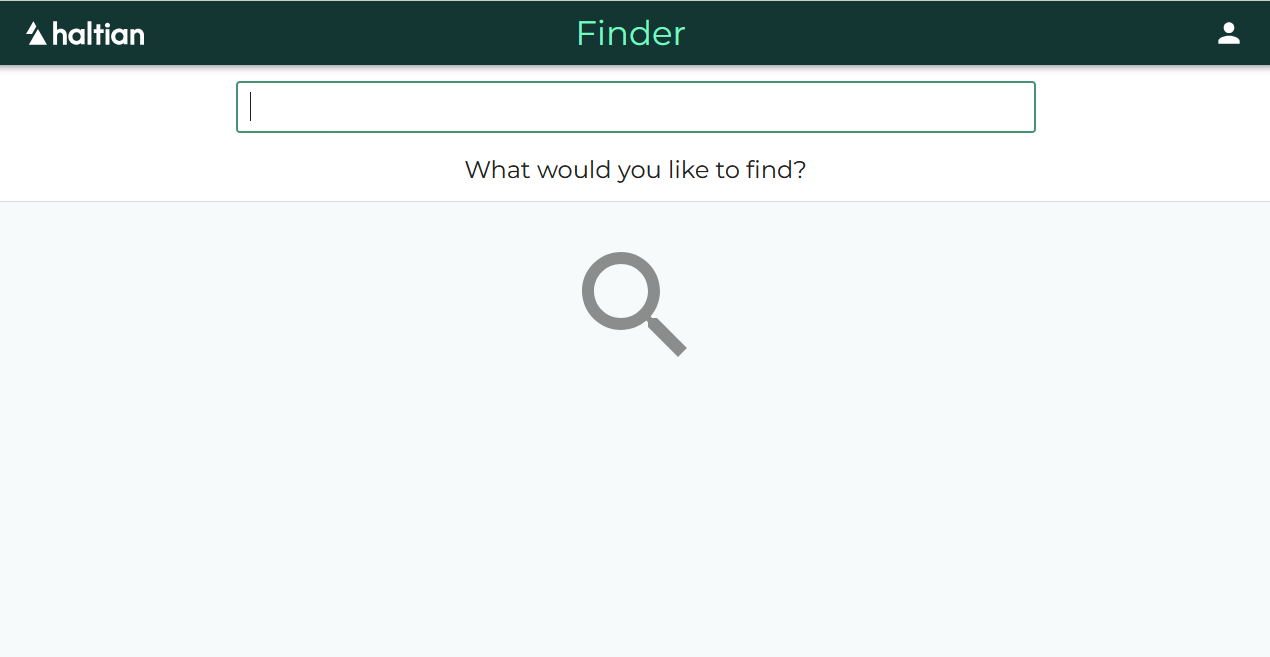
Top Navigation Bar
| Element | Description |
|---|---|
| Haltian logo | Click to return to the main search page |
| Finder | App title |
| Profile icon | Opens the user profile menu (top right) |
Main Content Area
The main screen is the device search page:
- Search field — Type a device name, ID, or keyword to search
- Recently viewed — Quick links to devices you have recently opened
There is no sidebar menu — the app is focused on device search and details.
What to Do First
- Search for a device — Type a device name, ID, or keyword to find a device
- View device details — Click a device from the results to see its location and information
- Explore recently viewed — After opening devices, they appear in your “Recently viewed” list for quick access
All data is view-only — there are no editing features. Your access is based on the sites assigned to your account.
No site rights
If you see “You don’t have any site rights” after login, your account does not have access to any sites. Contact your Manager to get site access assigned.
Next Steps
- Device Search — Learn about search methods and result fields
- Device Details — View device info, keywords, and location map