Getting Started
Get started with Haltian Finder - Login, navigation, and first steps
This guide walks you through accessing Haltian Finder and navigating the basic interface.
Accessing Haltian Finder
Login
- Navigate to haltian-finder.eu.haltian.io
- Enter your credentials:
- Organization ID - Your Haltian IoT organization identifier
- Email address - Your user account email
- Password - Your account password
- Click Sign In
Account Access
If you don’t have an account or need to reset your password, contact your organization administrator.
Interface Overview
Once logged in, you’ll see the main Haltian Finder interface with the following sections:
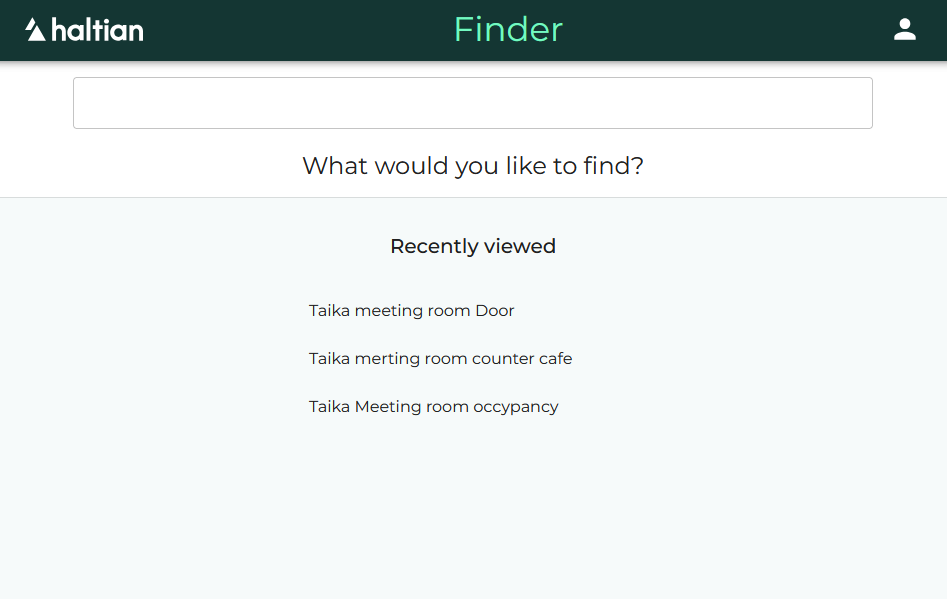
Navigation Menu
The left sidebar provides access to main features:
- Map - View asset locations on an interactive map
- Assets - Browse and search your asset inventory
- Zones - Manage geographic zones and boundaries
- History - Review historical location data
- Settings - Configure application preferences
Map View
The central map area displays:
- Asset Markers - Pins showing current asset locations
- Zone Boundaries - Visual outlines of defined zones
- Zoom Controls - Buttons to zoom in/out on the map
- Search Bar - Quick search for specific assets
Information Panel
The right sidebar shows:
- Asset Details - Information about selected assets
- Zone Information - Details about selected zones
- Filters - Currently active search filters
- Legend - Color coding and symbol explanations
Basic Navigation
Finding Assets on the Map
- Click on the Map menu item
- Use the search bar to find an asset by name or ID
- Click on an asset marker to view its details
- Use zoom controls to adjust map view
Searching for Assets
- Click on the Assets menu item
- Enter search terms in the search field
- Optionally apply filters to narrow results
- Click on an asset from the list to view details
Viewing Asset History
- Select an asset from the map or assets list
- Click the History tab in the information panel
- Select a date range to view movement data
- The map will show the asset’s location path during that period
User Roles and Permissions
Haltian Finder support different user roles. Your available features depend on your assigned role:
| Role | Capabilities |
|---|---|
| Viewer | View asset locations and movement history, search assets |
| Manager | Full access including zone management and settings configuration |
If a feature is unavailable to you, contact your organization administrator to request additional permissions.
Next Steps
- Learn about asset tracking features
- Set up and manage zones
- Master search and filtering to find assets quickly
Troubleshooting
Can’t log in?
- Verify your organization ID, email, and password are correct
- Check that your account is active in your organization
- Contact your administrator if you’ve forgotten your credentials
Map not loading?
- Ensure JavaScript is enabled in your browser
- Try refreshing the page
- Clear your browser cache and cookies
- Try a different browser if the issue persists
Asset locations not updating?
- Verify your internet connection is active
- Check that your assets have active communication with the network
- Allow a few moments for real-time data to synchronize