Device Search
The main screen of Haltian Finder is the device search page. Type in the search field to find devices — the search looks across device names, identifiers, and keywords simultaneously.
How Search Works
Use the search field to find sensor devices and tags by name, identifier, or assigned keyword. Search is case-insensitive and begins automatically after you stop typing for one second.
The search matches across:
- Device name — full or partial match
- Device identifiers — Customer Label ID, GIAI, TUID, Wirepas Node ID, and serial number
- Keywords — any keyword assigned to the device
Search Examples
One search term
Searching for LabelPrinter finds devices where the term appears in the name, an identifier, or a keyword. Partial matches are included, such as LabelPrinter-2nd-floor.
Multiple search terms
Searching for LabelPrinter taika returns only devices that match both terms. The terms can match different fields: for example, LabelPrinter can match the device name while taika matches an assigned keyword.
Numeric Wirepas Node ID
When the search term contains only a number, such as 12, Finder also matches devices whose Wirepas Node ID is exactly 12.
Search Results
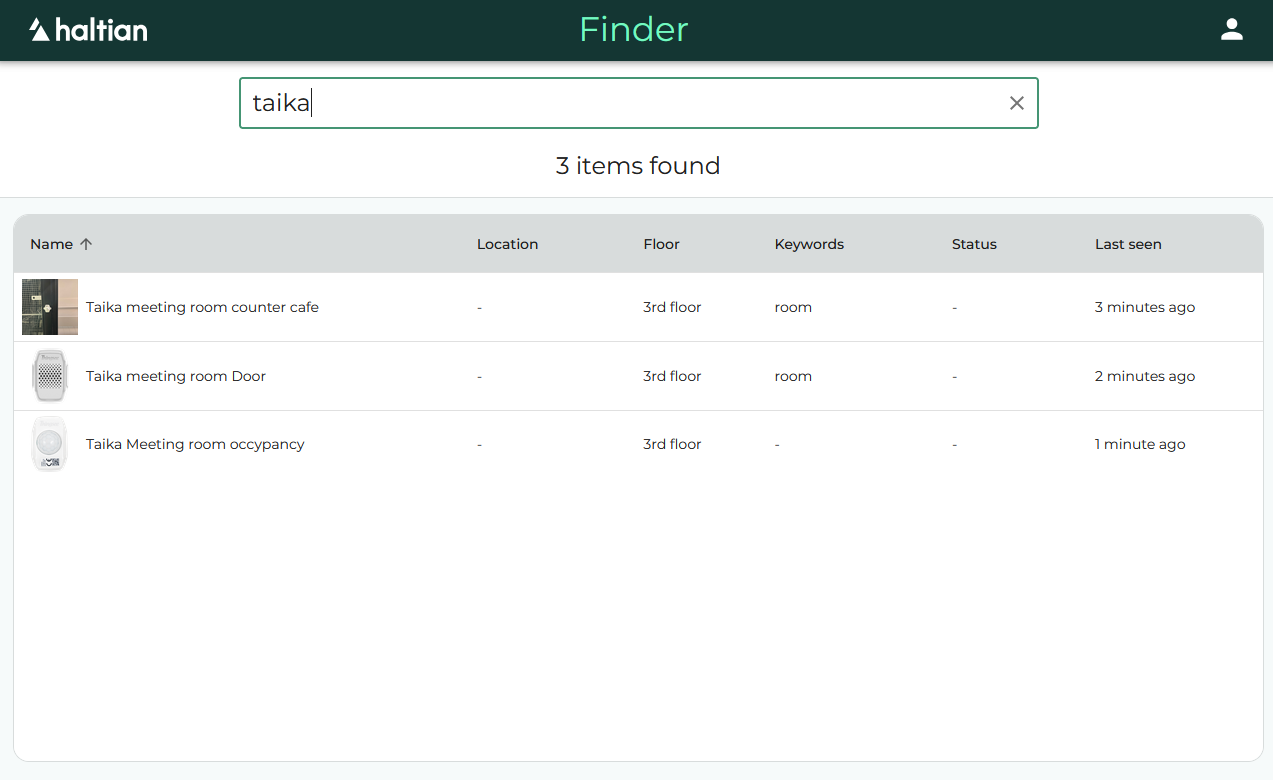
Search results display the following information for each device:
| Field | Description |
|---|---|
| Name | Device name |
| Model | Hardware model type |
| Last seen | When the device last communicated |
| Battery | Current battery level |
| Status | Device status indicator |
| Keywords | Assigned keywords |
| Role | Device role |
| Installation status | New, installed, etc. |
| Site / Building / Floor / Zone | Device location in the space hierarchy |
Click any device in the results to open its Device Details.
If more than 100 devices match, Finder shows the first 100 results and displays a warning. Add more specific search terms to narrow the results.
Recently Viewed
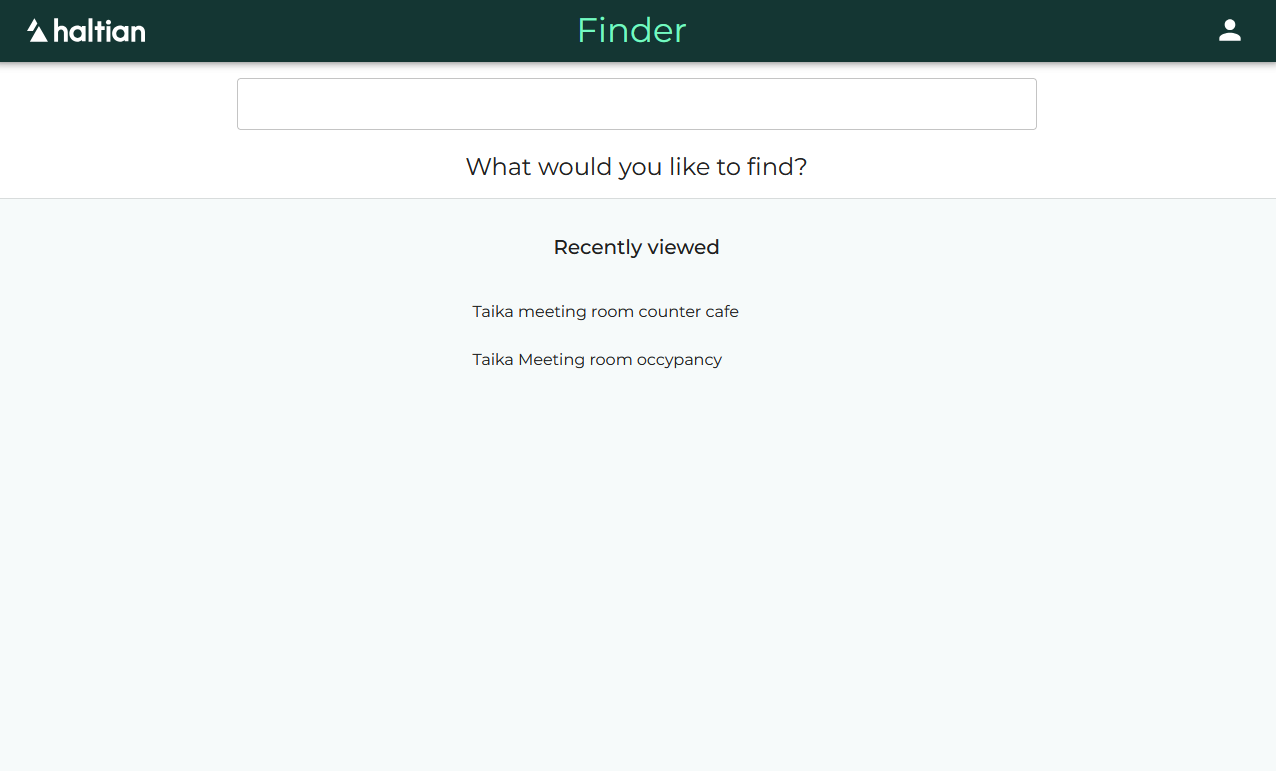
Below the search field, Haltian Finder shows your Recently viewed devices — a list of devices you have previously opened. This list is stored in your browser and provides quick access without searching again.
Click any recently viewed device to go directly to its details.
Clearing Search
Click the clear button (X) in the search field to reset the search and return to the recently viewed list.