Device Details
View device location, keywords, and position history in Haltian Finder
When you open a device from search results or the recently viewed list, the device details view shows device information and an interactive location map.
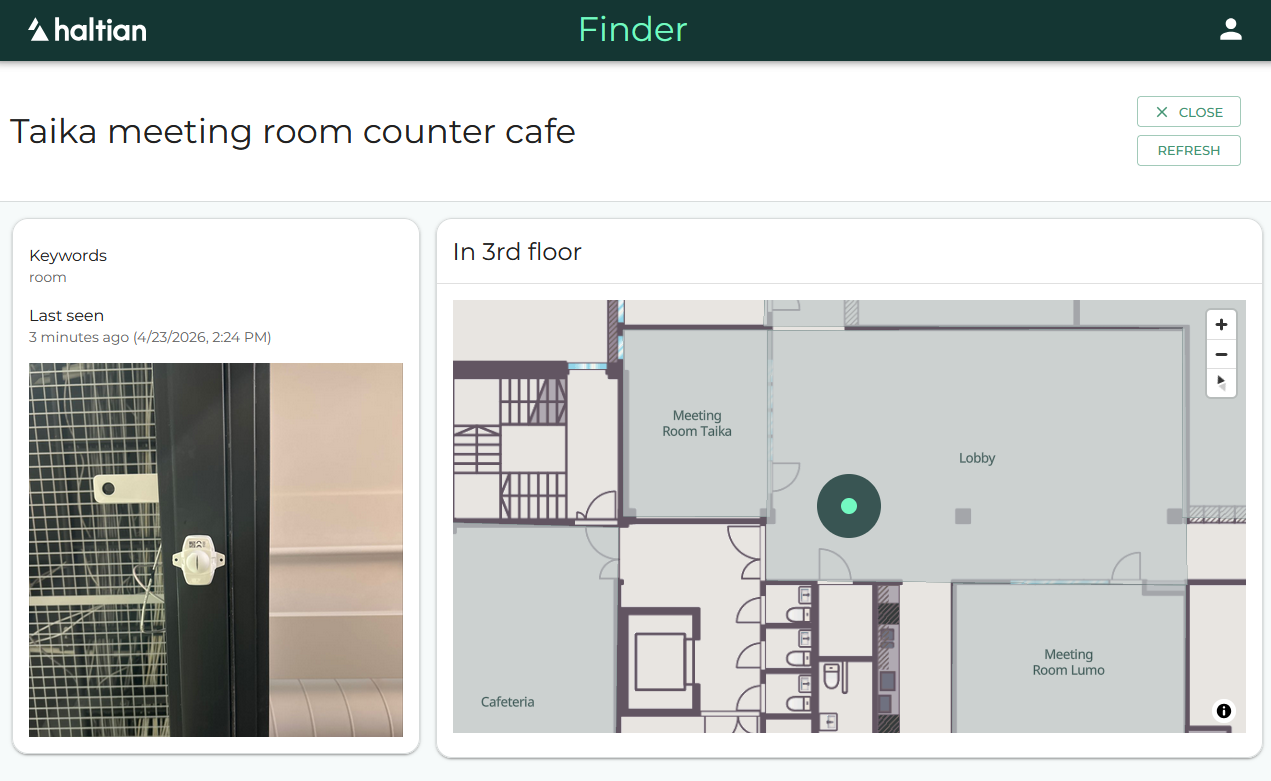
Device Information (Left Panel)
The left side of the device details view displays:
| Element | Description |
|---|---|
| Device name | The name assigned to the device |
| Close button | Returns to the search page |
| Refresh button | Reloads the device data |
| Keywords | Keywords assigned to this device |
| Last seen | When the device last communicated, shown as relative time (e.g. “2 hours ago”) |
| Device image | Photo attached to the device, or a default icon for the device type |
Location (Right Panel)
The right side shows the device’s location on an interactive map.
At the top, the current zone and floor are displayed (e.g. “In Meeting Room Taika, 3rd floor”). If the device has no location data, “No location available” is shown.
Below the header, the map displays:
- The device position marker on the floor plan (if a floor plan is available)
- Zone boundaries
- Position history visualization