Search and Discovery
Overview
The Search tab is the primary way to find devices in Haltian Field. You can search by text, scan a QR code, or enter a numeric ID.
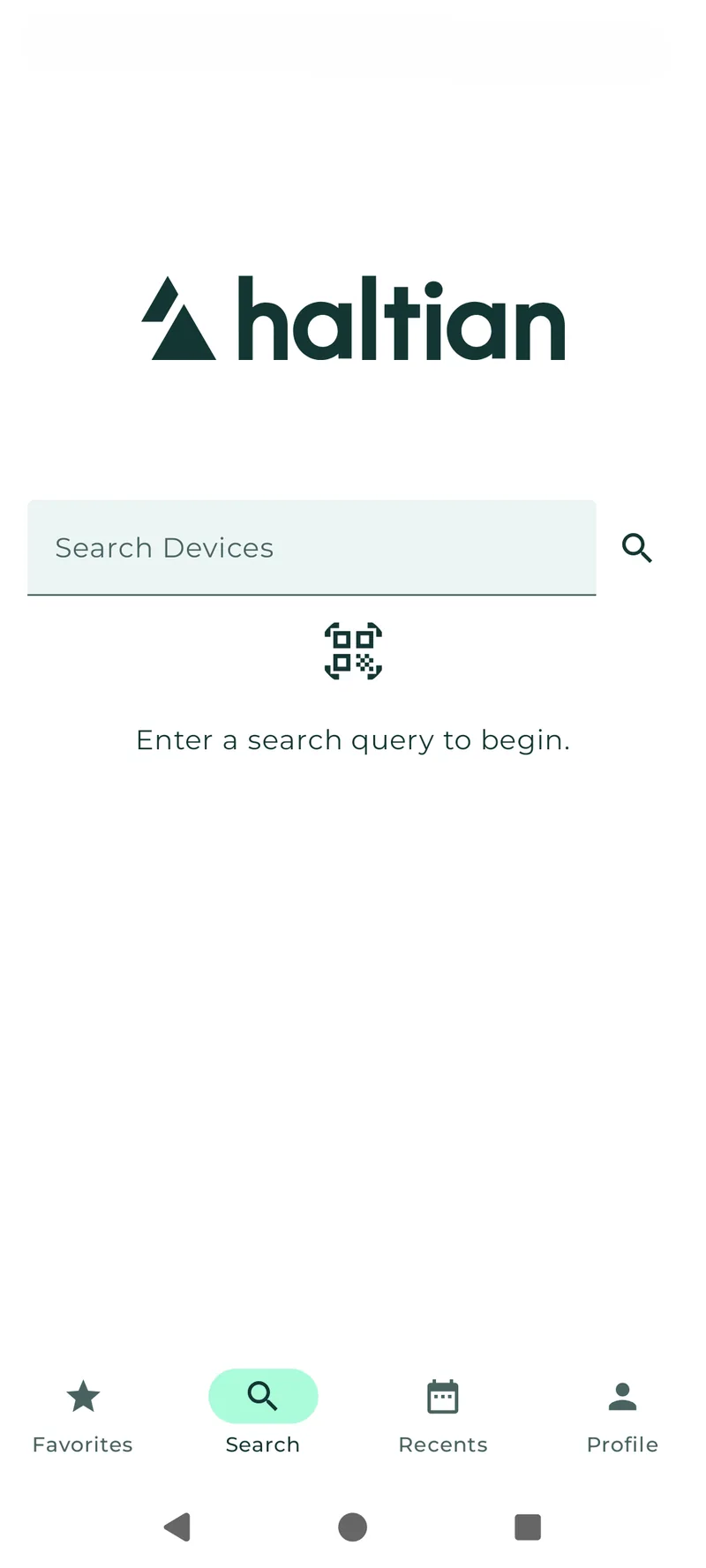
Android
Text Search
Tap the search field and type any of the following:
| Search By | Example |
|---|---|
| Device name | Meeting Room Sensor |
| Customer Label ID | LABEL-001 |
| Vendor Serial | TSE-12345678 |
| External ID | EXT-456 |
| GIAI | urn:epc:id:giai:... |
The app shows auto-suggestions as you type (after a brief delay). Tap a suggestion or press search to see full results.
Results are limited to 30 devices. If you see the warning “More than 30 matches. Refine your search criteria”, narrow your search terms.
Numeric Search
When you enter a purely numeric value, the app automatically searches numeric fields:
| Field | Example |
|---|---|
| Wirepas Node ID | 12345 |
| Other numeric identifiers | 67890 |
QR Code Scanning
Tap the QR scanner button (camera icon) next to the search field to open the barcode scanner.
Scanning Steps
- Tap the QR scanner button on the Search tab
- Grant camera permission if prompted
- Point the camera at the QR code or barcode on the device
- The app automatically reads the code and searches for the device
- If found, the device detail opens directly
Search Results
Each result shows:
- Device name (or “Unnamed device” if not set)
- Device type (product/model)
- Last seen indicator — green if seen within 24 hours, orange if older
- Thumbnail image if a photo has been uploaded
Devices not seen for more than 3 days appear dimmed to indicate they may be offline or inactive.
Tap any result to open the Device Details screen.