Health Check
Overview
The Health Check screen lets you rapidly validate devices in the field by scanning their QR codes. Point the camera at a device label and instantly see whether it’s online, its battery status, and where it’s located — without navigating through menus.
This is ideal for deployment verification, maintenance rounds, or troubleshooting connectivity issues on-site.
Requirements
| Requirement | Details |
|---|---|
| Roles | Installer, Designer, Manager |
| Access | Setup section in the sidebar navigation |
| Hardware | Camera access required for QR scanning |
Using Health Check
- Open the Health Check screen from the Setup section in the sidebar
- The camera occupies the top half of the screen
- Point the camera at a device QR code or barcode
- The result panel below shows the device status instantly
You can scan devices continuously — each new QR code replaces the previous result.
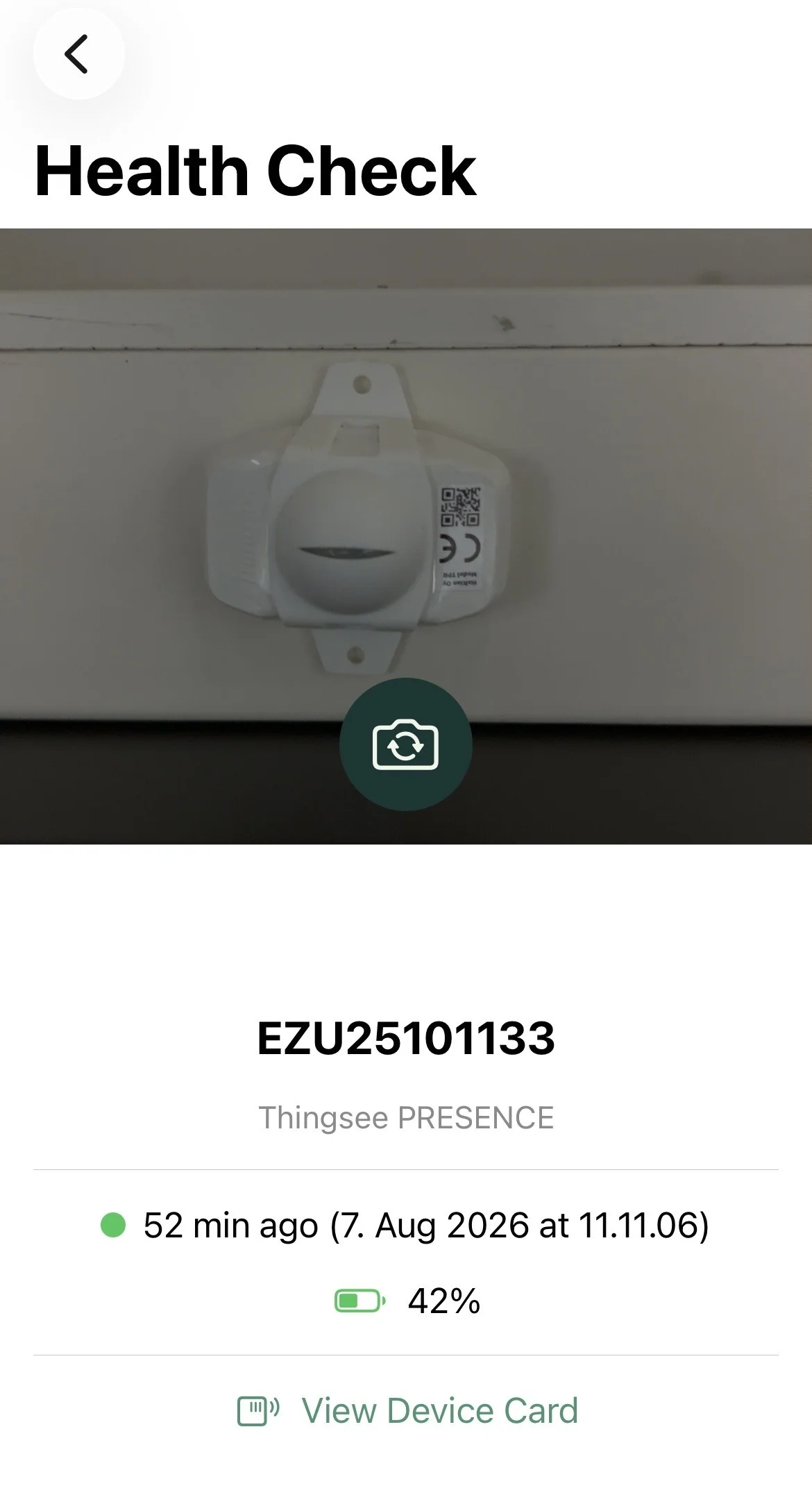
Result Panel
Device Found
When a device is recognized, the panel shows:
| Field | Description |
|---|---|
| Device name | The display name of the device |
| Product type | Device model/product name |
| Last seen | Timestamp with color-coded status indicator |
| Battery | Battery percentage or voltage with icon |
| Location | Last estimated space name |
| View Device Card | Link to open the full Device Details screen |
Status Indicators
| Color | Meaning |
|---|---|
| 🟢 Green | Device seen recently — operating normally |
| 🟡 Yellow | Device not seen for a while — may need attention |
| 🔴 Red | Device offline or critically low battery |
Battery Icons
The battery icon reflects the charge level:
| Level | Icon |
|---|---|
| 75–100% | Full battery (green) |
| 50–74% | Three-quarter battery (green) |
| 25–49% | Half battery (green) |
| 10–24% | Quarter battery (yellow) |
| Below 10% | Empty battery (red) |
Device Not Found
If the scanned code doesn’t match any device in your organization, the panel shows a red ✗ icon with “Device not found” and the scanned code value.
Waiting State
Before scanning, the panel shows: “Point the camera at a device QR code.”
Workflow Examples
Deployment Verification
After installing a batch of devices, walk through the site and scan each one:
- Scan the QR code
- Confirm the status indicator is green (device communicating)
- Verify the location matches where you installed it
- Move to the next device
Maintenance Round
During a scheduled maintenance visit:
- Scan devices along your route
- Note any with yellow/red status or low battery
- Tap View Device Card for detailed diagnostics on problem devices
- Use Notes to document any actions taken
Next Steps
- Device Details — Full device information and configuration
- Search and Discovery — Other ways to find devices