Getting Started
Installation, login, and navigation basics for Haltian Field
Installation
Android
Haltian Field for Android is available on the Google Play Store. Search for “Haltian Field” or use the direct link.
Requirements: Android 15 (SDK 35) or later.
iOS
Haltian Field for iOS is available on the Apple App Store. Search for “Haltian Field” or use the direct link.
Requirements: iOS 26 or later.
Logging In
When you open the app, you see the login screen with four fields:
| Field | Description | Example |
|---|---|---|
| Host | The Haltian IoT server URL | eu.haltian.io |
| Organization | Your organization name | mycompany |
| Username | Your email address | user@company.com |
| Password | Your account password |
Fill in all four fields and tap Login. The app validates your credentials and loads your organization’s space hierarchy.
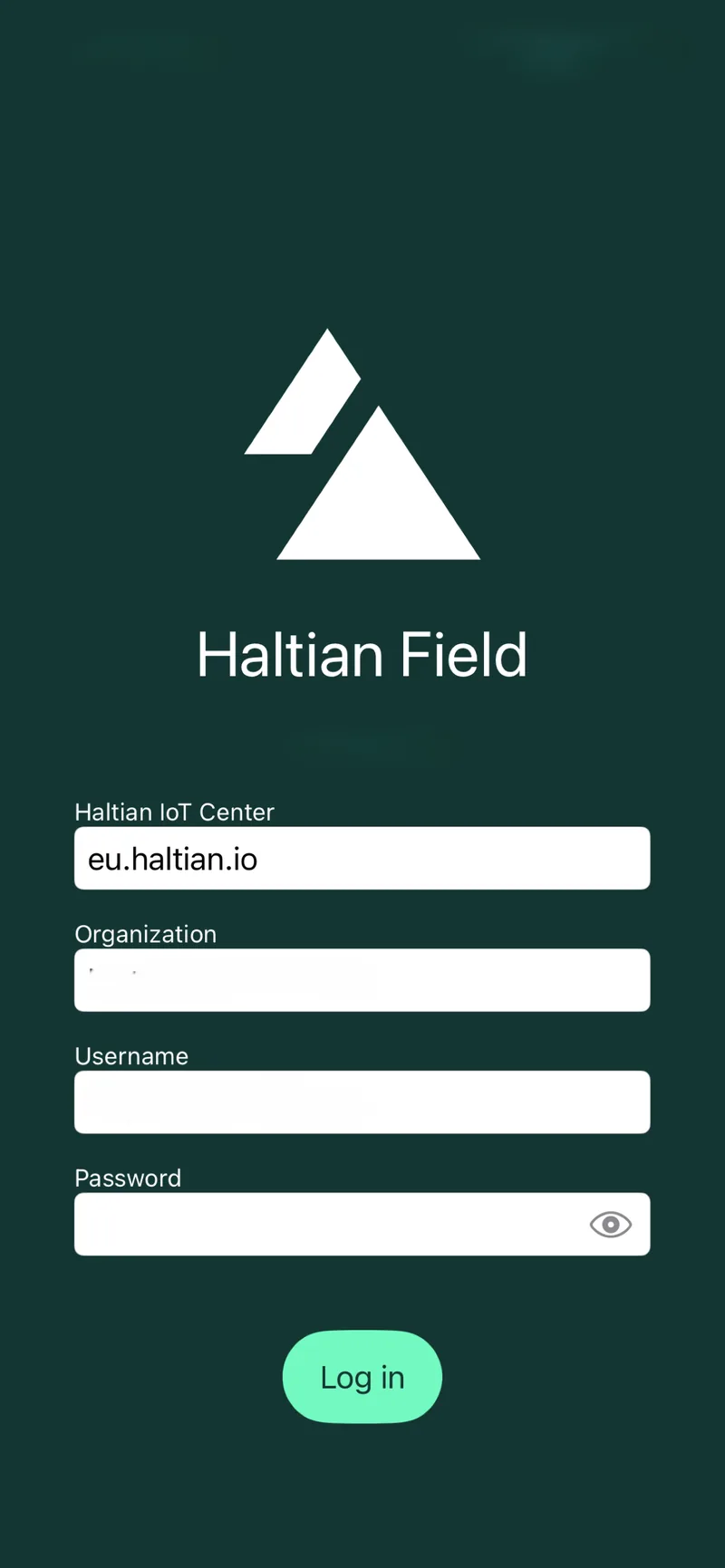
iOS
Tip
The app remembers your login details for the next launch, so you only need to enter them once.If you have trouble logging in, see Troubleshooting.
Navigation
After logging in, the app shows four tabs at the bottom of the screen:
| Tab | Icon | Description |
|---|---|---|
| Favorites | Star | Your pinned device measurements with sparkline charts |
| Search | Search | Find devices by text, number, or QR code |
| Recents | Clock | Last 20 devices you viewed |
| Profile | Person | Your account info, organization, and logout |
Note
Users with the None role see an access denied screen instead of the main tabs. Contact your administrator to get a role assigned.Navigating to a Device
- Tap the Search tab
- Type a device name, ID, or serial number — or tap the QR scanner button
- Tap a device in the search results
- The Device Details screen opens with all device information
From the device details, you can access measurements, configuration, notes, keywords, files, and map location.
Next Steps
- Search and Discovery — Learn all the ways to find devices
- Device Details — Understanding the device detail screen
- Favorites and Recents — Set up your personal dashboard