Installation
Physical Installation
Mounting Options
The Gateway N8 supports multiple mounting configurations for different deployment scenarios.
Wall Mounting
Mark Mounting Points
- Use mounting holes on rear panel as template
- Spacing: 100mm horizontal, 60mm vertical
- Ensure surface can support 500g load
Install Mounting Screws
- Use M4 screws (not included)
- Drill pilot holes for drywall/wood installations
- Leave 2-3mm gap for mounting slots
Secure Gateway
- Align mounting slots with screw heads
- Slide gateway down to lock in place
- Verify secure mounting before cable connection
DIN Rail Mounting
Install Optional DIN Rail Bracket
- Attach bracket to rear panel mounting holes
- Tighten M3 screws (included with bracket)
Mount to DIN Rail
- Hook upper edge of bracket over rail
- Press lower edge until click is heard
- Pull down to verify secure attachment
Desktop Placement
- Place on non-slip rubber feet (included)
- Ensure adequate ventilation (10cm clearance on all sides)
- Position away from heat sources and direct sunlight
Dimensional Requirements
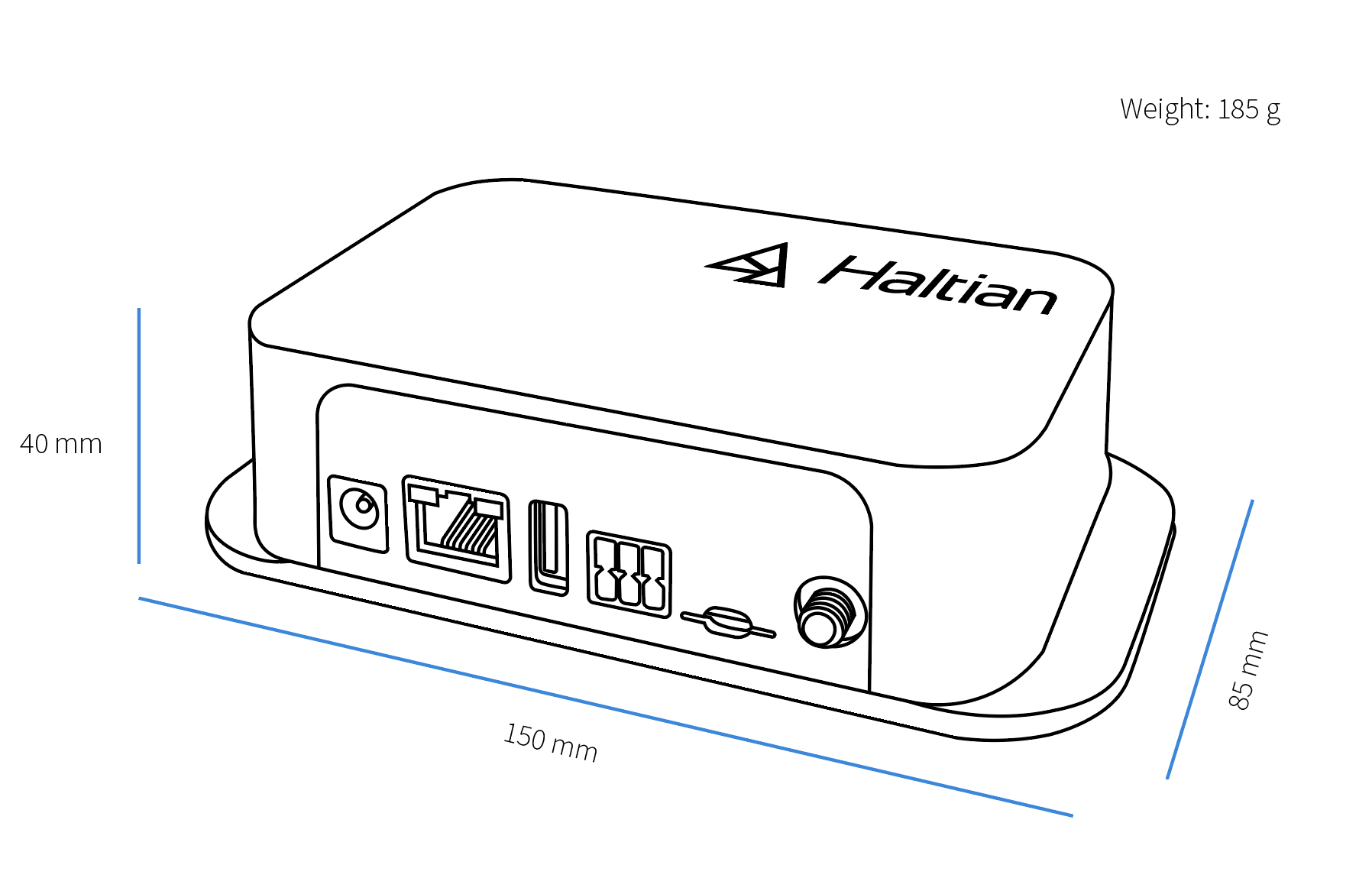
- Dimensions: 150 x 85 x 40mm (W x H x D)
- Clearance Required: 10cm on all sides for ventilation
- Cable Bend Radius: Minimum 25mm for Ethernet/power cables
Power Connection
BLE Version (PoE)
Power over Ethernet (Recommended):
- Connect PoE-capable Ethernet switch to RJ45 port
- Verify PoE standard: IEEE 802.3af (15.4W) or 802.3at (25.5W)
- Power LED should illuminate within 5 seconds
- Gateway boots automatically (30-60 seconds)
DC Power (Alternative):
- Connect 9-36V DC power supply to DC jack
- Ensure correct polarity (center positive)
- Use twist & lock feature to secure connector
- Power LED illuminates immediately
Connector Specifications:
- Outer diameter: 5.5mm
- Inner diameter: 2.1mm
- Center pin: Positive (+)
- Outer barrel: Negative (-)
LTE Version (DC Only)
The LTE version does NOT support PoE. Use DC power only.
Select Power Supply
- Voltage: 9-36V DC
- Minimum current: 1A @ 12V (2A recommended)
- Use regulated power supply for best performance
Connect DC Power
- Insert DC jack into power port
- Rotate connector clockwise to lock
- Verify LED illumination
Verify Power Consumption
- Idle: 0.4W (LED only)
- Typical operation: 3-5W
- Peak (LTE transmission): 8W max
Network Connection
Ethernet Setup
For Fixed Network Installations:
Connect Ethernet Cable
- Use Cat5e or Cat6 cable
- Maximum length: 100m
- Connect to Gigabit switch for best performance
Verify Network Configuration
- Gateway obtains IP via DHCP by default
- Check switch port LED for link status
- Gateway attempts cloud connection within 60 seconds
Network Requirements
- DHCP server on network (for automatic IP)
- Outbound HTTPS (port 443) allowed
- NTP access (port 123) for time synchronization
- DNS resolution available
Network Ports Required:
| Protocol | Port | Direction | Purpose |
|---|---|---|---|
| HTTPS | 443 | Outbound | Cloud API communication |
| NTP | 123 | Outbound | Time synchronization |
| DNS | 53 | Outbound | Name resolution |
WiFi Setup (Optional)
For Wireless Backhaul:
Access Configuration Interface
- Connect via Ethernet initially
- Access web interface at gateway IP
- Or use serial console (internal access)
Configure WiFi Credentials
- Enter SSID and passphrase
- Select security mode (WPA2/WPA3 recommended)
- Save configuration
Verify Connection
- WiFi LED indicator shows status
- Gateway will connect to configured network
- Fallback to Ethernet if WiFi unavailable
WiFi Specifications:
- Standards: 802.11 a/b/g/n/ac
- Frequency: 2.4 GHz and 5 GHz
- Security: WPA2-PSK, WPA3-PSK
LTE Setup (LTE Version Only)
For Cellular Backhaul:
Install SIM Card
- Power off gateway
- Insert micro SIM card (metal contacts facing down)
- Push until click is heard
- Power on gateway
Connect LTE Antenna
- Attach external LTE antenna to SMA connector
- Hand-tighten (do not over-torque)
- Position antenna vertically for optimal reception
Verify Cellular Connection
- LTE LED indicates connection status
- Gateway will connect to cellular network automatically
- Fallback to 3G/2G if LTE unavailable
SIM Requirements:
- Format: Micro SIM (3FF)
- LTE bands: Operator must support Cat 4 bands
- APN configuration: Usually automatic, can be configured if needed
LTE Bands Supported:
- LTE Cat 4: Check regional specifications
- 3G/2G fallback: Worldwide coverage
Initial Verification
LED Status Indicators
Monitor programmable LEDs for system status:
| LED Pattern | Meaning | Action |
|---|---|---|
| Solid Green | Power on, normal operation | None required |
| Blinking Green | Network activity | Normal operation |
| Solid Red | Error condition | Check logs, see troubleshooting |
| Blinking Red | Firmware update in progress | Wait for completion |
| No LED | No power | Check power connection |
Cloud Registration
Verify Gateway Registration:
Access Haltian IoT Studio
- Log in to your Haltian IoT account
- Navigate to Devices → Gateways
Locate New Gateway
- Gateway appears automatically after cloud connection
- Note gateway UUID for identification
- Verify firmware version
Verify Network Connectivity
- Check “Last Seen” timestamp (should be recent)
- Review connection type (Ethernet/WiFi/LTE)
- Monitor signal quality metrics
Initial Configuration
After successful registration:
- Set Gateway Name - Assign meaningful name (location, function)
- Configure Wirepas Settings - See Configuration page
- Deploy Sensors - Position sensors within range
- Monitor Network Formation - Verify sensors join mesh network
Cable Management
Best Practices
- Ethernet: Avoid sharp bends, maintain minimum 25mm radius
- Power: Route away from high-voltage lines (>100V AC)
- LTE Antenna: Position for best signal, avoid metal obstructions
- Cable Length: Keep Ethernet under 100m, minimize power cable length
Environmental Considerations
- Operating Temperature: 0°C to 50°C
- Humidity: 0% to 95% RH (non-condensing)
- Ventilation: Ensure air circulation around enclosure
- Protection: IP rating suitable for indoor use only
Post-Installation Checklist
- Gateway physically secured (wall/DIN rail/desktop)
- Power connected and LED illuminated
- Network cable connected (Ethernet/WiFi configured)
- LTE antenna connected and SIM inserted (LTE version)
- Gateway appears in Haltian IoT Studio
- Firmware version verified
- Gateway named appropriately
- Network connectivity verified
Next Steps
- Configure Wirepas Settings - Set up mesh network parameters
- Deploy Sensors - Position sensors and verify connectivity
- Monitor Network - Check mesh network performance
- Update Firmware - Ensure latest gateway firmware
Support
For installation assistance:
- Email: support@haltian.com
- Review Troubleshooting Guide for common issues